
ONSTEP Three-Star Alignment uses three known stars to build a pointing-error model that corrects systematic pointing error in later GOTO operations. The workflow first selects three stars, then performs GOTO, precise centering, and alignment for each star.
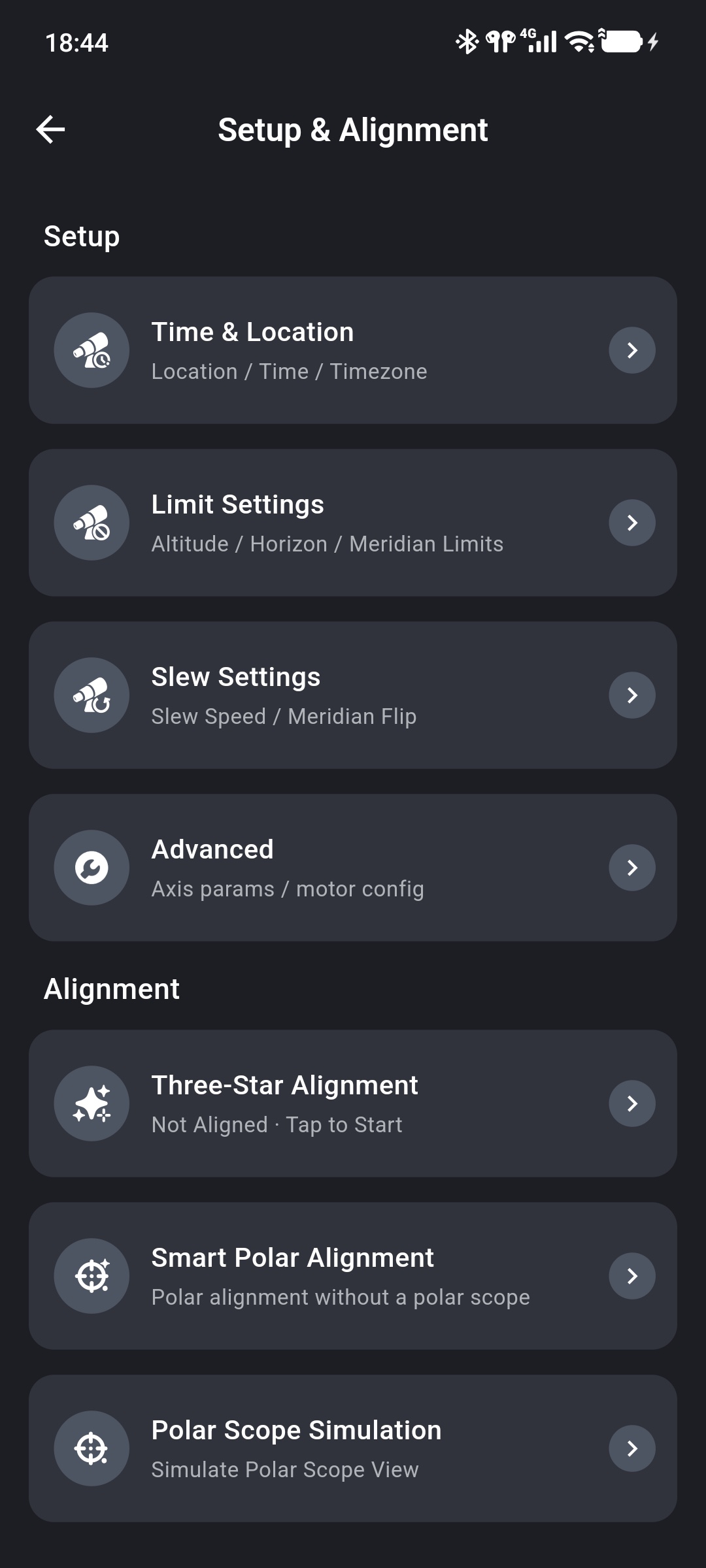
From the Alignment section of Setup & Alignment, select Three-Star Alignment. The App switches to the Sky Chart in alignment mode.
Before You Begin
Confirm that:
- ONSTEP is connected;
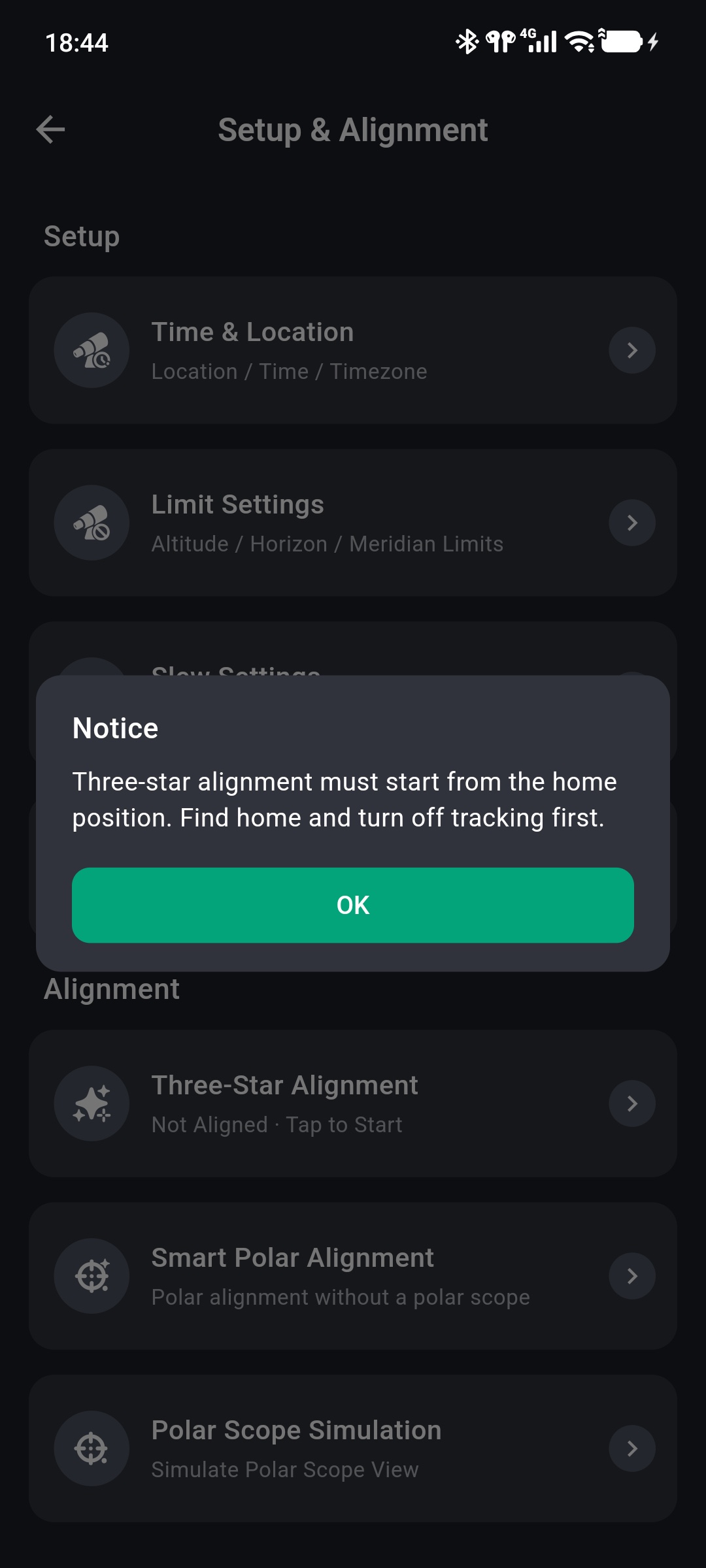
- the mount is at the correct home position and tracking is off;
- the mount is not parked;
- the mount's date, time, and location are accurate;
- the optical tube, counterweights, and cables will not collide or pull tight while moving between alignment stars.
If the mount is not at home, the App prevents alignment mode from opening and displays a notice.
Alignment moves the mount
After selecting all three stars and starting alignment, every tap on GOTO commands the mount to slew automatically. Review Limit Settings beforehand and continuously observe the equipment.
Select Three Alignment Stars
The Three-Star Alignment panel and selection progress appear below the Sky Chart.
- Select the first star that you can identify reliably.
- Confirm its name, RA, and DEC in the panel, then tap Next.
- Select the second and third stars in the same way.
- After confirming all three, review the list and tap Start Alignment.
Only stars are accepted. Nebulae, galaxies, planets, and other object types cannot be alignment stars.
Prefer bright, recognizable stars that are not blocked by buildings or terrain. Avoid concentrating all three stars in one small part of the sky so ONSTEP receives more useful pointing-error information.
Align Each Star
After selecting Start Alignment, process each star as instructed:
- Tap GOTO and wait for the mount to finish pointing to the current alignment star.
- Identify the target in the eyepiece or camera. If it is not centered, use a low manual slew rate for fine adjustment.
- After precisely centering the correct star, tap Align.
- When the panel advances, tap GOTO again and repeat centering and alignment.
- After the third star is aligned successfully, the App displays Three-Star Alignment Complete.
Identify and center the target before alignment
Tap Align only after confirming that the selected alignment star is actually centered in the eyepiece or camera. Adding the wrong object or an off-center position to the pointing model reduces subsequent GOTO accuracy.
When complete, Three-Star Alignment displays Aligned on the Setup & Alignment page. Selecting it again asks whether to start over.
Abort or Repeat Alignment
Selecting Exit Alignment warns that unfinished progress will be lost. After exiting, all three stars must be selected again and the process restarted.
Repeat Three-Star Alignment when:
- the mount has been set up again or moved;
- the home position has changed;
- the observing site has changed;
- a wrong star was selected or a target was not centered accurately;
- later GOTO operations show a persistent, systematic error.
Troubleshooting
Three-Star Alignment Will Not Open
Confirm that the mount is connected, at home, not tracking, and unparked. If the App says alignment must start from home, return the equipment safely to the correct home position before reopening the workflow.
The Alignment Star Is Not Visible After GOTO
Check mount time, location, and home position, and confirm that the selected star is currently visible. Start with a low-power eyepiece or a wider camera field, then center the target progressively.
The Alignment Command Fails
Confirm a stable connection and wait for the current GOTO to finish completely before tapping Align. If the problem continues, exit alignment mode and start again.
Next Alignment Step
After Three-Star Alignment, use Smart Polar Alignment to measure and correct polar error.
If the mount has an optical polar scope, Polar Scope Simulation can assist mechanical polar alignment.