Preferences control App appearance and operating behavior. Open Profile and select Preferences to review the current configuration.
These settings are stored locally on the phone and do not write configuration to ONSTEP.
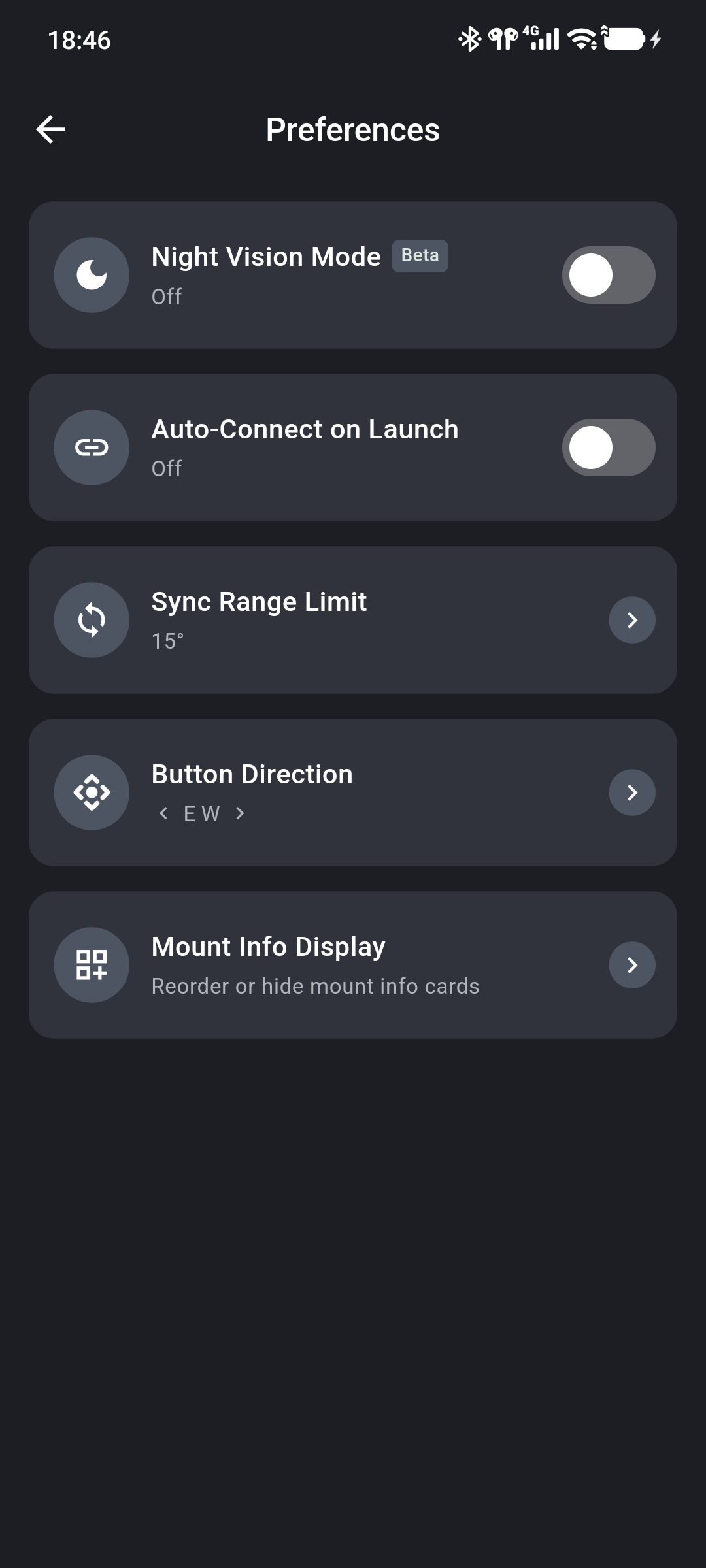
Night Vision Mode
Night Vision Mode changes the App to a primarily red display to reduce the effect of screen viewing on dark adaptation. It is currently marked Beta.
Use the switch to enable or disable it. The change applies immediately throughout the App, including the Sky Chart and 3D Telescope Preview. Even when enabled, adjust phone brightness for the environment to avoid an excessively bright screen.
Auto-Connect on Launch
When Auto-Connect on Launch is enabled, the App attempts to connect at next startup with the previous connection method:
- for Wi-Fi, it reads the saved IP address and port;
- for Bluetooth, it reads the previously selected device.
If there is no valid saved connection or the device is unavailable, the App remains disconnected. Return to Device to check Connection and connect manually.
When disabled, the App restores the previous connection settings at startup but does not initiate a connection.
Sync Range Limit
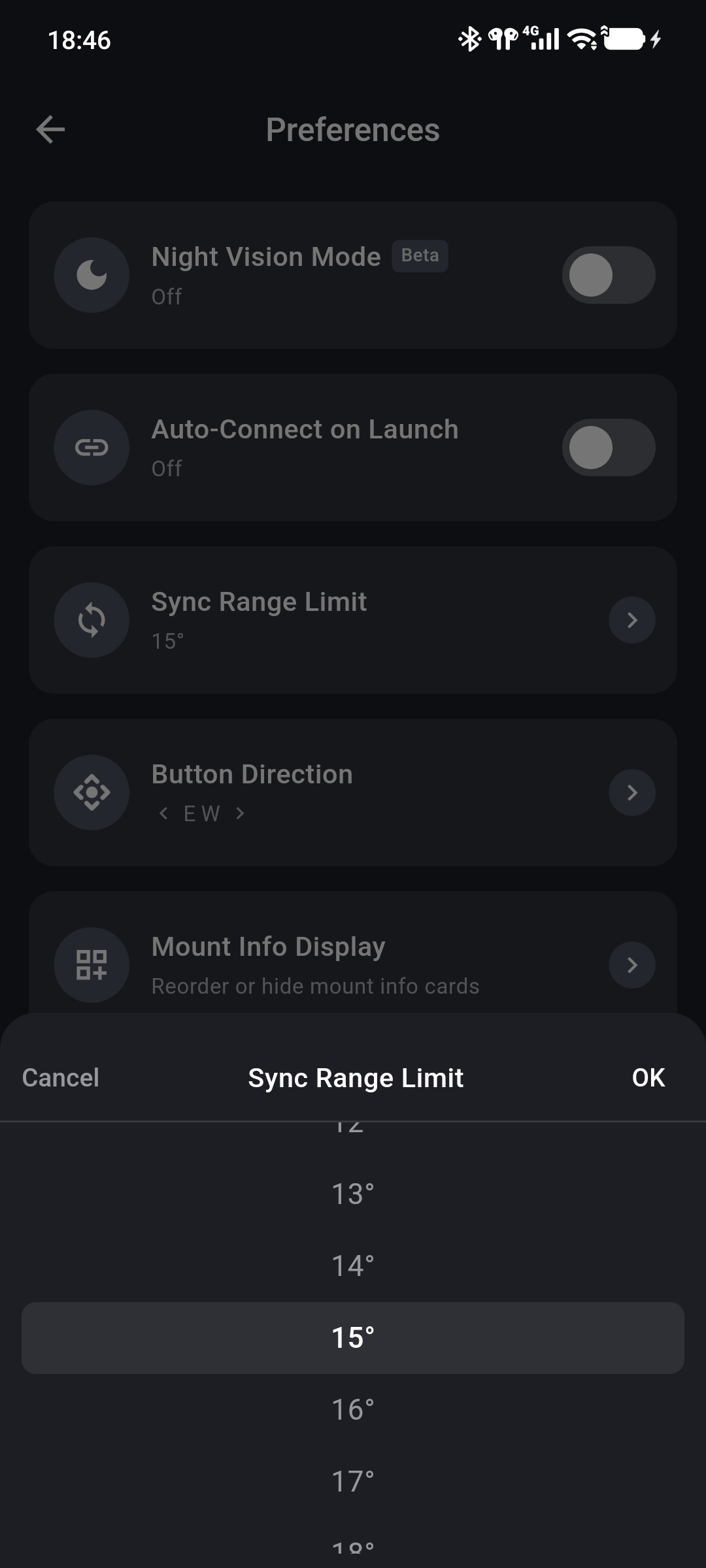
Sync Range Limit sets the maximum angular separation allowed between a Sky Chart target and the telescope's current pointing, reducing the risk of synchronizing a distant target as the current position.
Tap Sync Range Limit and select:
1°–45°: Sync is available only when angular separation does not exceed the selected value.- Unlimited: Do not apply an angular limit.
The default is 15°. Tap OK when finished.
This limits Sync only
This setting does not restrict GOTO. Sync corrects the pointing coordinates currently recorded by ONSTEP, so first confirm that the Sky Chart target matches the object actually centered in the telescope field.
Button Direction
Button Direction sets whether the left and right manual controls correspond to west/east or east/west. Choose:
- W E: west on the left and east on the right;
- E W: east on the left and west on the right.
The default is E W. North and south are unaffected.
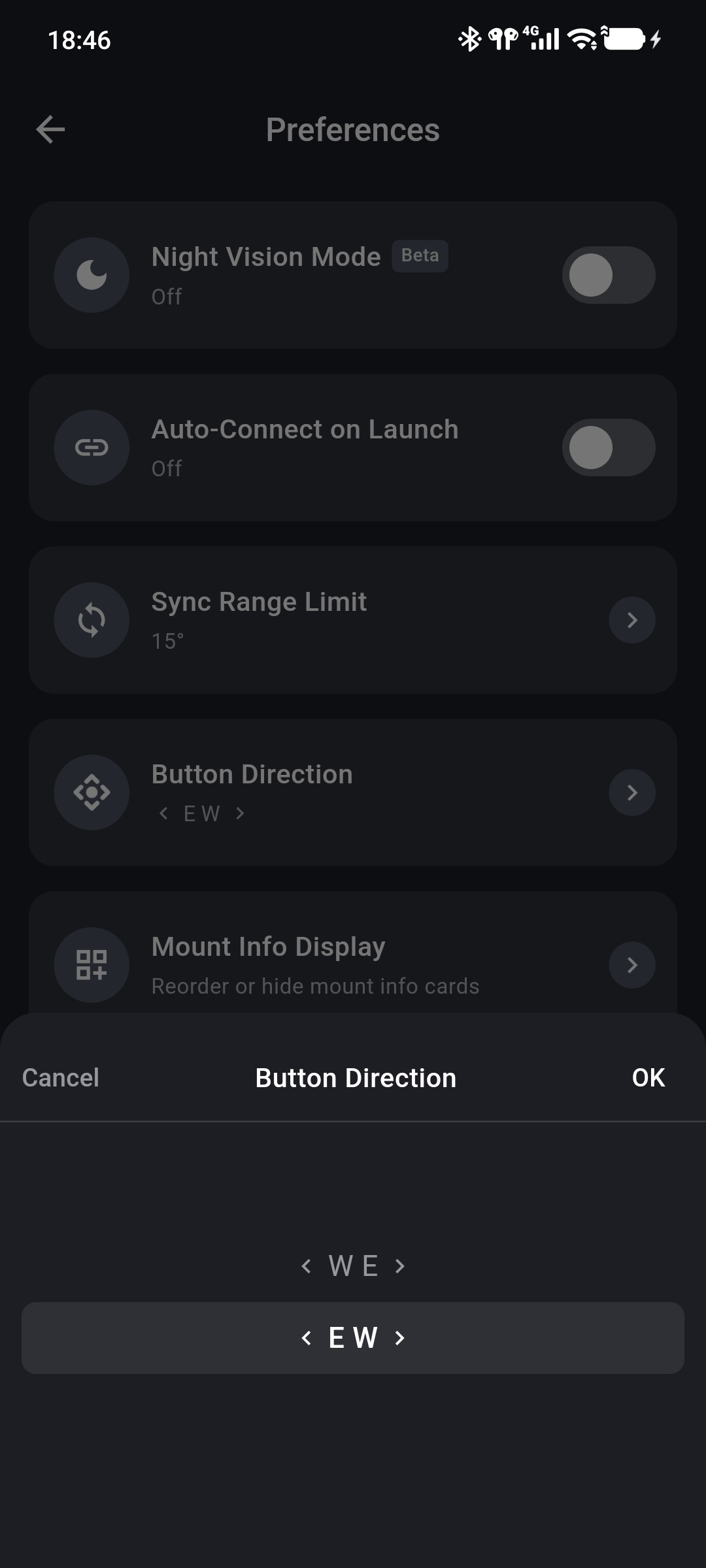
The manual control panel and 3D Telescope Preview apply the new arrangement immediately. After changing it, use a low slew rate to confirm the physical direction.
Mount Info Display
Select Mount Info Display to reorder and choose the cards shown on the two Mount Info pages.
- Long-press and drag a card to change its position.
- Exchange cards that support hiding with items under Hidden to change what is displayed.
- Longitude, Latitude, Date, Time, and Error always remain visible and cannot be moved to Hidden.
- Tap Reset to restore the default order and displayed items.
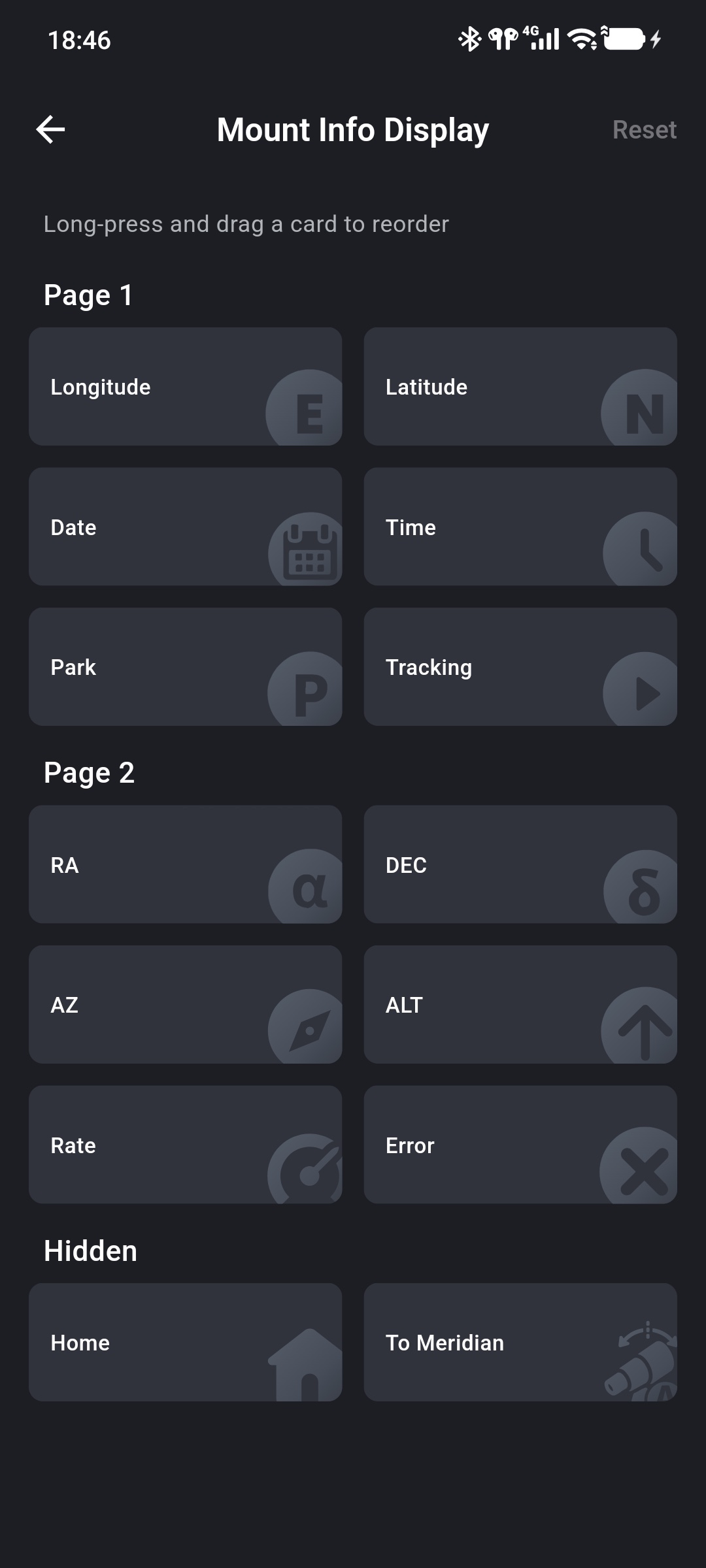
The new layout applies immediately after returning to Device. See Mount Information for the meaning of each card.