
Tonight calculates rise and set periods for Solar System objects from the current time and observing location and counts catalog objects currently above the horizon. Selecting an object opens it in the Sky Chart for further review or GOTO.
Open Device from the bottom navigation and tap Explore Observable Targets at the top to open Tonight.
Selecting a target does not move the mount
Selecting an object in Tonight or a catalog only opens it in the Sky Chart. The mount moves only after GOTO is subsequently confirmed there.
Observing Location and Calculations
Tonight selects an observing location in this order:
- use Mount Location when ONSTEP is connected and reports valid coordinates;
- otherwise use the phone's System Location;
- if neither is available, use a sample location and display Using Sample Location.
Sunrise, sunset, rise/set periods, current altitude, and visible counts all depend on location. If a sample-location notice appears or results differ significantly from the site, check phone location permission and update ONSTEP under Time & Location.
Review Solar System Objects
The top shows the day's Sunset and Sunrise. The Solar System chart includes the Moon, Mercury, Venus, Mars, Jupiter, Saturn, Uranus, and Neptune.
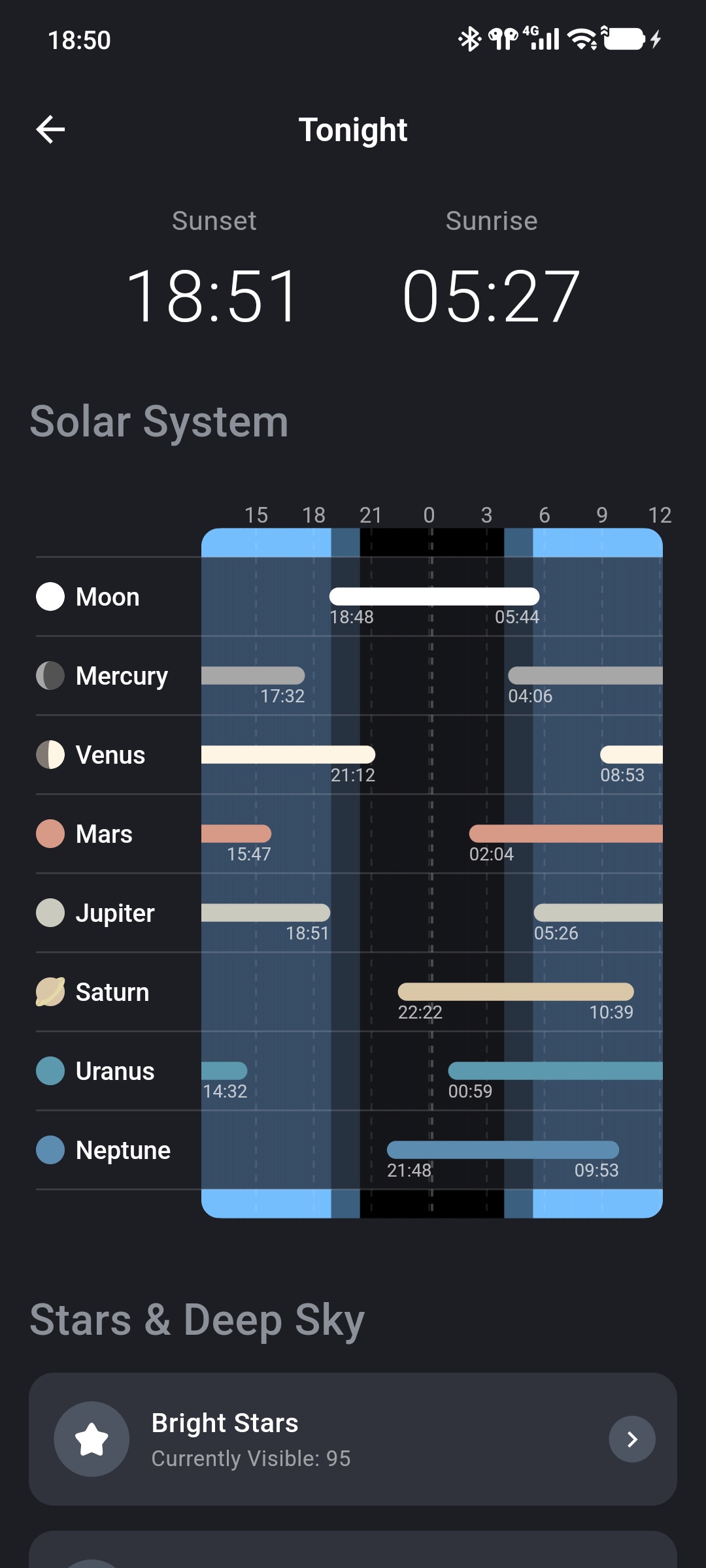
Its horizontal axis covers the observing period around the current night:
- each row represents one Solar System object;
- a colored bar represents the period during which it is above the horizon;
- times at the bar ends indicate rise or set;
- the background changes from light to dark to represent approximate daylight, twilight, and night.
Select any Solar System object to locate it in the Sky Chart. Before GOTO, still check altitude, local obstructions, and the mount movement path.
Select a Catalog
Scroll to Stars & Deep Sky. Each card displays the currently visible count; only objects with a current altitude of at least 2° are counted.
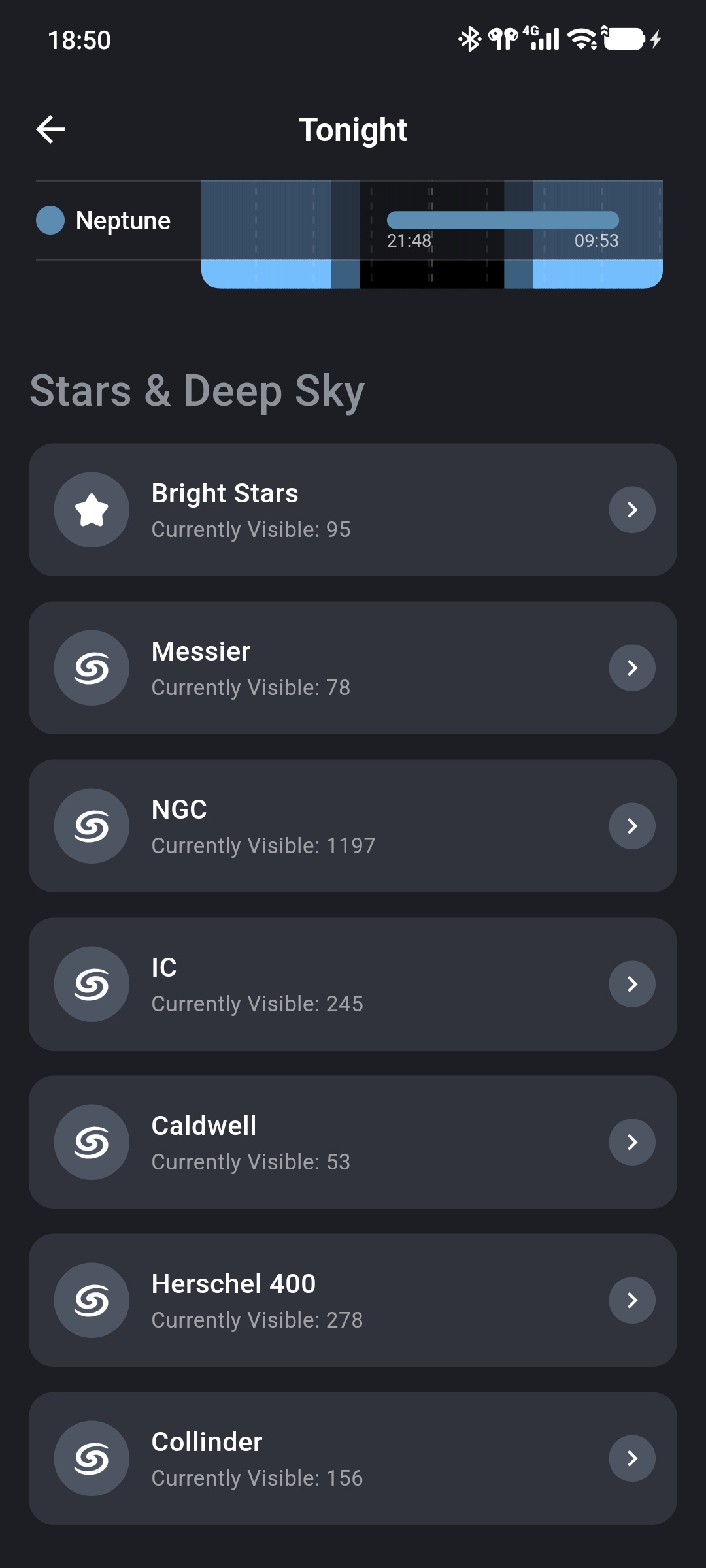
Available catalogs are:
| Catalog | Main content |
|---|---|
| Bright Stars | Bright stars suitable for direct identification and alignment |
| Messier | Classic nebulae, clusters, and galaxies with M numbers |
| NGC | NGC object data included in the App |
| IC | IC object data included in the App |
| Caldwell | Caldwell deep-sky objects |
| Herschel 400 | Deep-sky objects in the Herschel 400 observing list |
| Collinder | Primarily open clusters from the Collinder catalog |
Visible counts change with time and location and are not total catalog sizes.
Read Catalog Information
A catalog list includes only objects currently at least 2° above the horizon. Each entry includes:
- catalog number and localized name;
- magnitude;
- current altitude;
- current azimuth and compass direction;
- constellation.
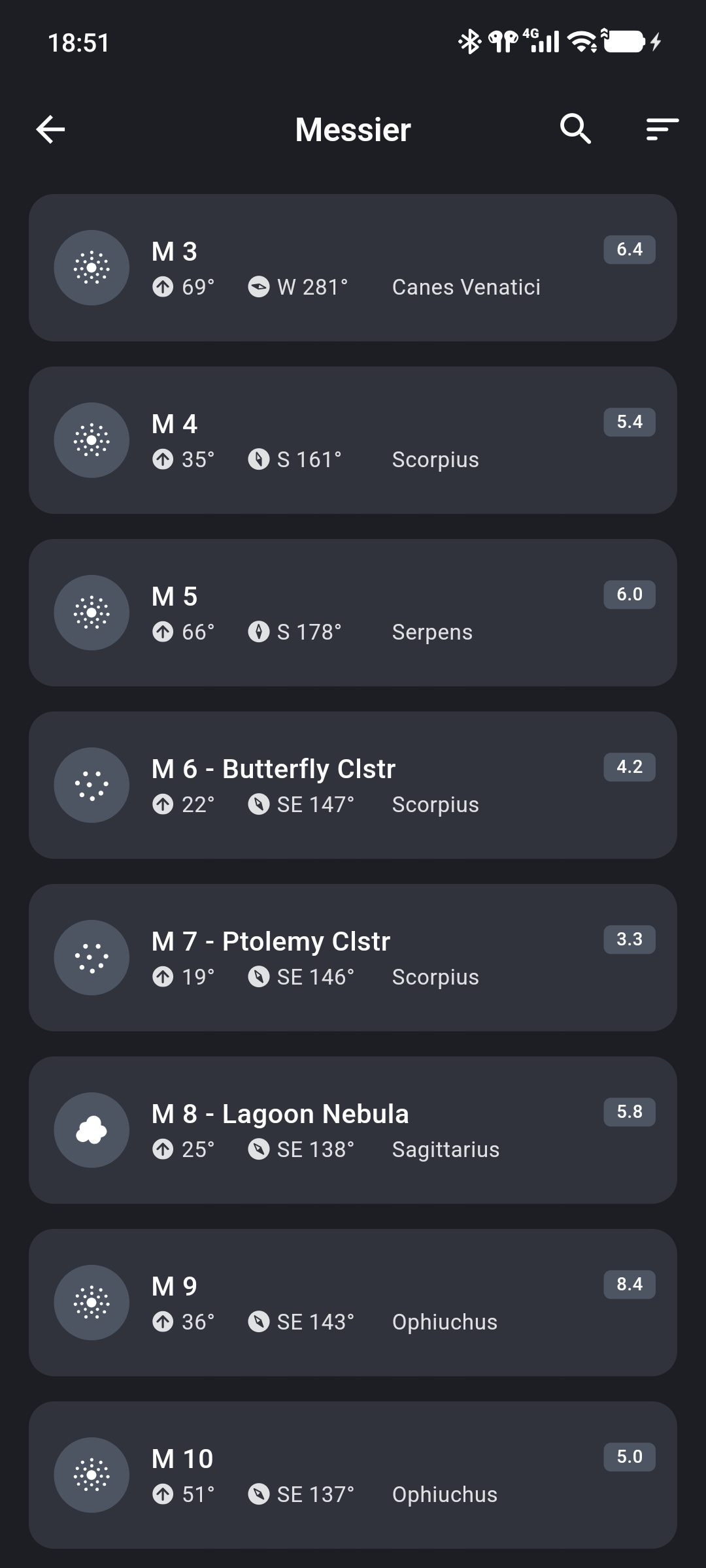
A lower magnitude generally means a brighter target; a greater altitude means it is farther above the horizon. Also consider moonlight, light pollution, aperture, and local obstructions rather than judging observability from one value.
Search and Sort
Search a Catalog
Tap the magnifying-glass icon to filter the current catalog by name or number, such as M13, NGC 224, or an object name. Search is still limited to the currently visible list; objects below the altitude filter do not appear.
Change Sorting
Tap the sort icon and select:
- Catalog Order: Use the catalog's native numerical order.
- By Magnitude: Put smaller magnitude values first.
- By Altitude: Put higher current altitudes first.
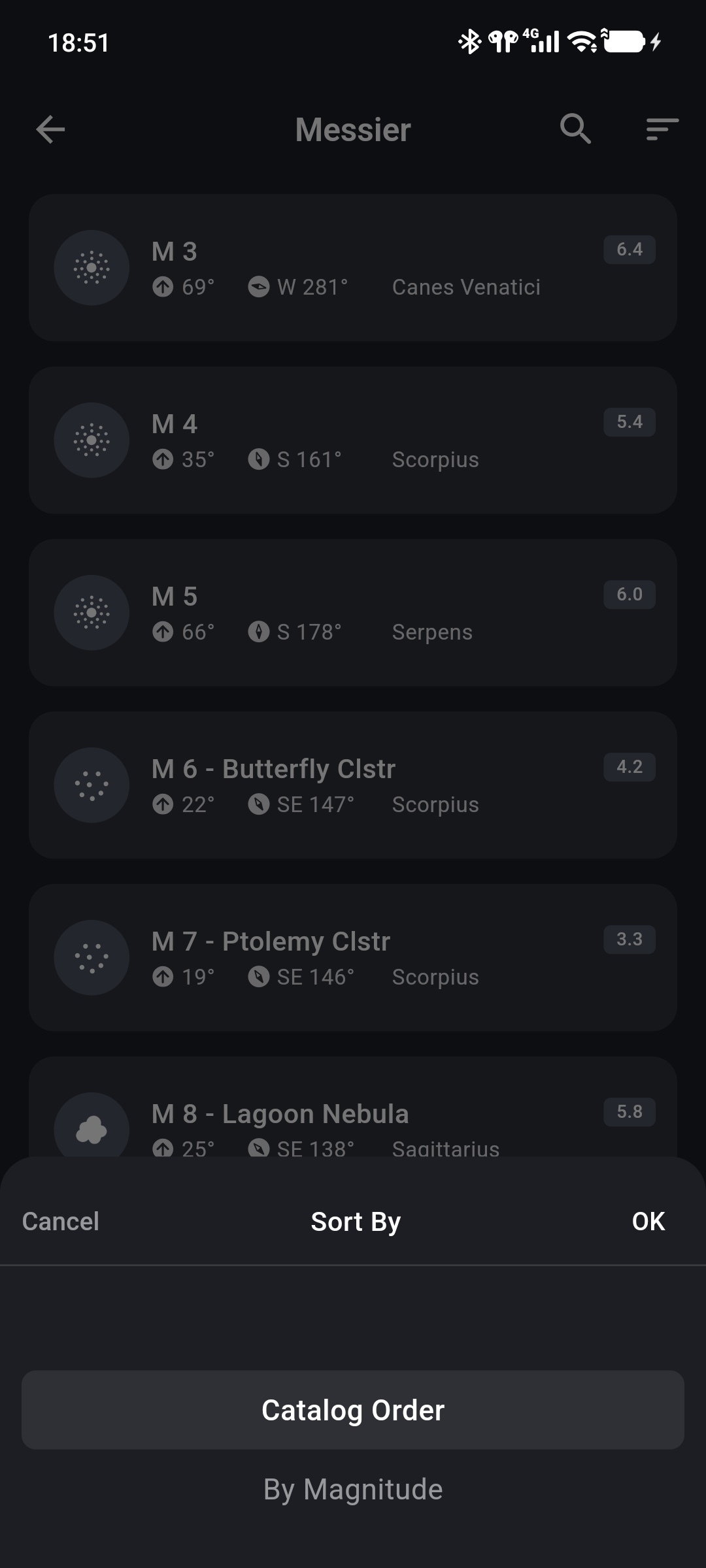
Use By Altitude to prioritize high objects, or By Magnitude to begin with brighter ones.
Open a Target in the Sky Chart
Selecting an object from the Solar System chart or a catalog automatically opens the Sky Chart and its Current Target panel.
Verify target name, altitude, and azimuth there. After confirming that ONSTEP is connected and the path is safe, follow Perform GOTO.
Data Problems
“Using Sample Location” Appears
The App has no valid mount or system location. Check the ONSTEP connection and coordinates, phone location permission, and system location service, then tap the notice to retrieve location again.
“No Visible Objects Tonight” Appears
The current catalog has no object at least 2° above the horizon. Return to another catalog or check again later.
“Calculation Failed” Appears
Tap Retry. If it still fails, check location data, reopen the page, or restart the App.