
This page organizes common TRITON GOTO mobile problems by connection, time and location, GOTO, alignment, and mount state. Check the relevant prerequisites before changing ONSTEP parameters or safety limits.
TIP
This guide is written for App version 2.0.3. Refer to the current App interface if another version differs.
Connections
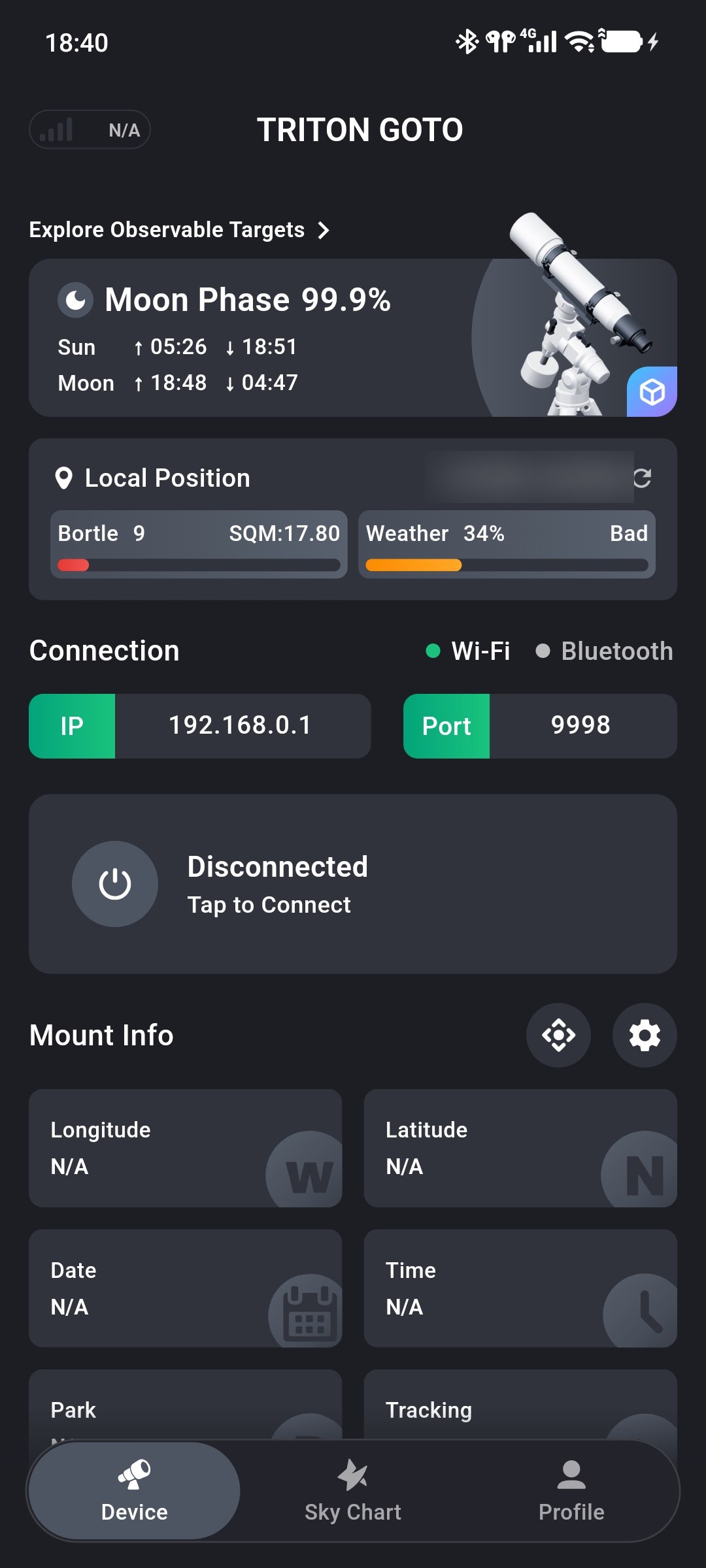
Cannot Connect, Remains on “Verifying,” or Shows “Connection Failed”
Check in order:
- Confirm the controller is powered on and its power and status/tracking indicators are lit.
- Wi-Fi: Confirm that the phone joined the ONSTEP or ONSTEPX network, mobile data is disabled, the IP is
192.168.0.1, and the port is9998. - Bluetooth: Bluetooth is available on Android only; use Wi-Fi on iOS.
- After checking, tap the connection status card to retry.
See Quick Start.
No Bluetooth Device Found
- Grant Bluetooth permission. Some Android versions also request location permission to scan nearby devices.
- Confirm the controller is powered on and has a Bluetooth module.
- Bluetooth connections are supported on Android only.
Frequent Disconnections or High RTT
- Reduce the distance between the phone and controller and avoid strong interference.
- Check for stable device power; commonly
12 Vand at least2 A, subject to the supplier's specification.
Location and Time
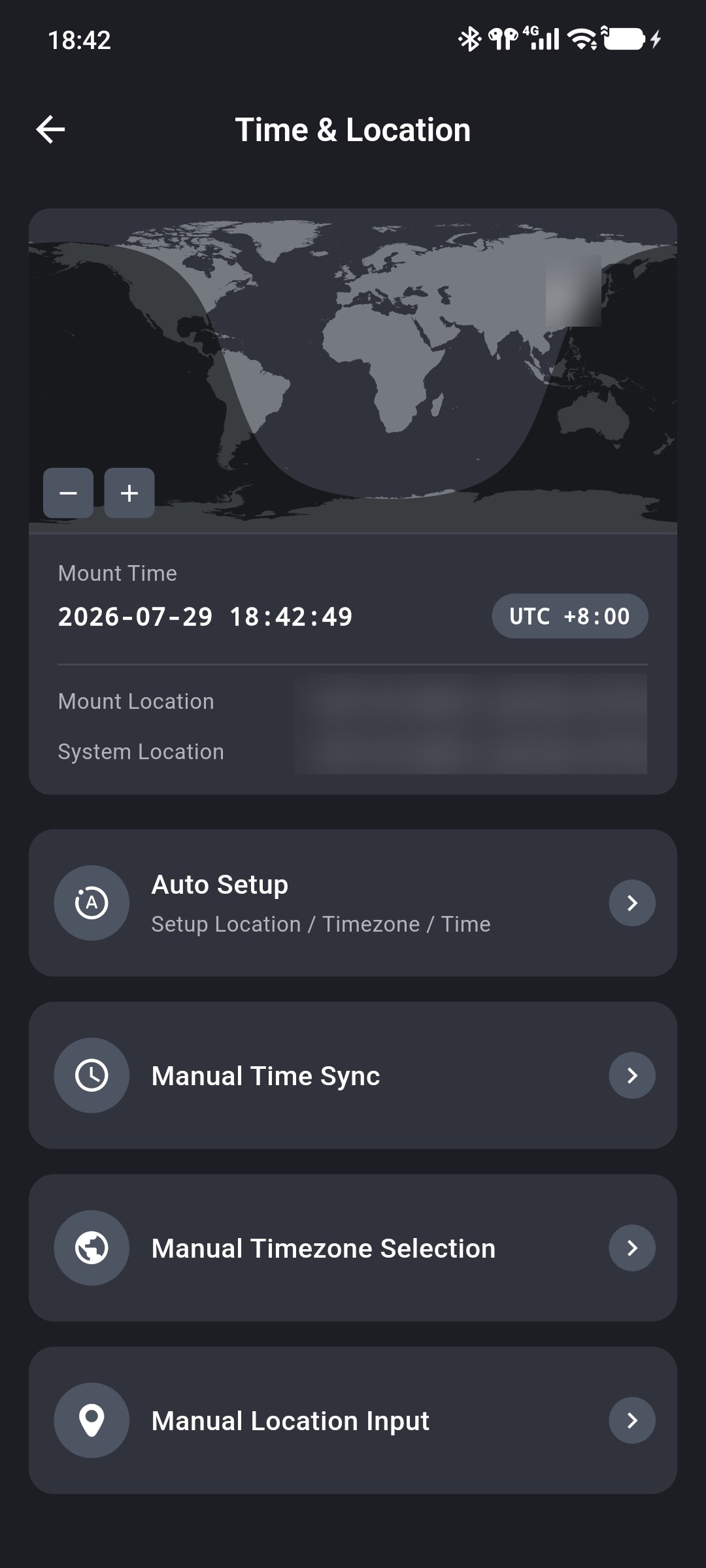
Location Fails or Tonight Requests Location
- Open Profile → System Permissions and confirm that Location Service is enabled and App Location Permission is granted.
- Use Auto Setup under Time & Location.
Mount Time or Location Differs Significantly from the Phone
ONSTEP still contains old values. Return to Time & Location and run Auto Setup or synchronize the relevant value manually.
Target Finding and GOTO
GOTO Is Inaccurate
Check in order of likely impact:
- Verify Time & Location, the most common cause.
- Complete Three-Star Alignment.
- Complete polar alignment with Smart Polar Alignment or a polar scope.
- Confirm that the mount was at the correct Home position at startup.
GOTO or Sync Is Disabled
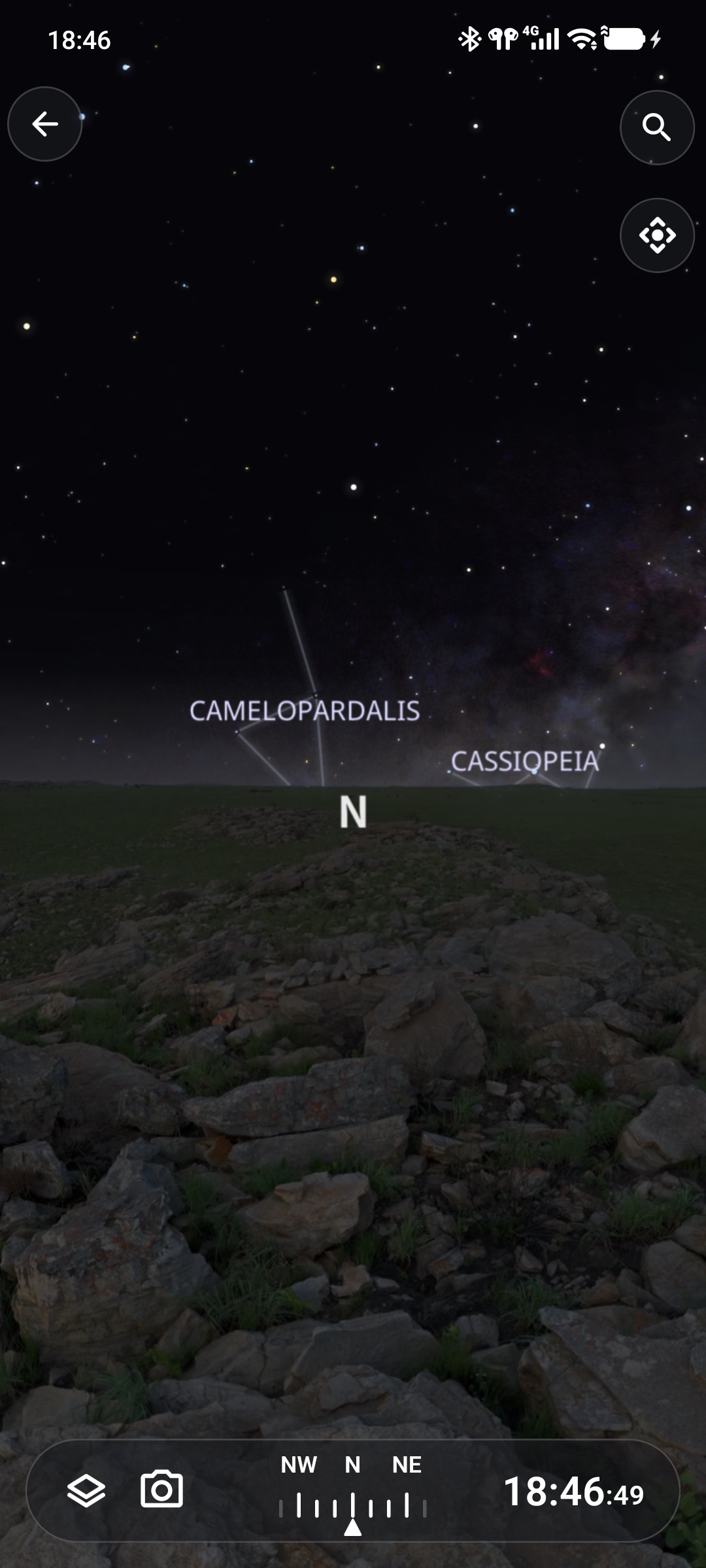
- The Sky Chart shows Not Current Time: Restore current time. See Non-current Time Restriction.
- GOTO is disabled: Confirm that the target has valid RA and DEC coordinates and is at or above the horizon.
- Sync is disabled: If the target is too far from the telescope's current pointing, change the permitted angular separation under Preferences only after confirming that the correct object is centered.
- The mount is disconnected: Connect it first.
Selecting the Sun Displays a Risk Warning
This is an intentional safety measure. Solar observing requires a professional solar filter and verified protection. See Solar Targets.
Alignment
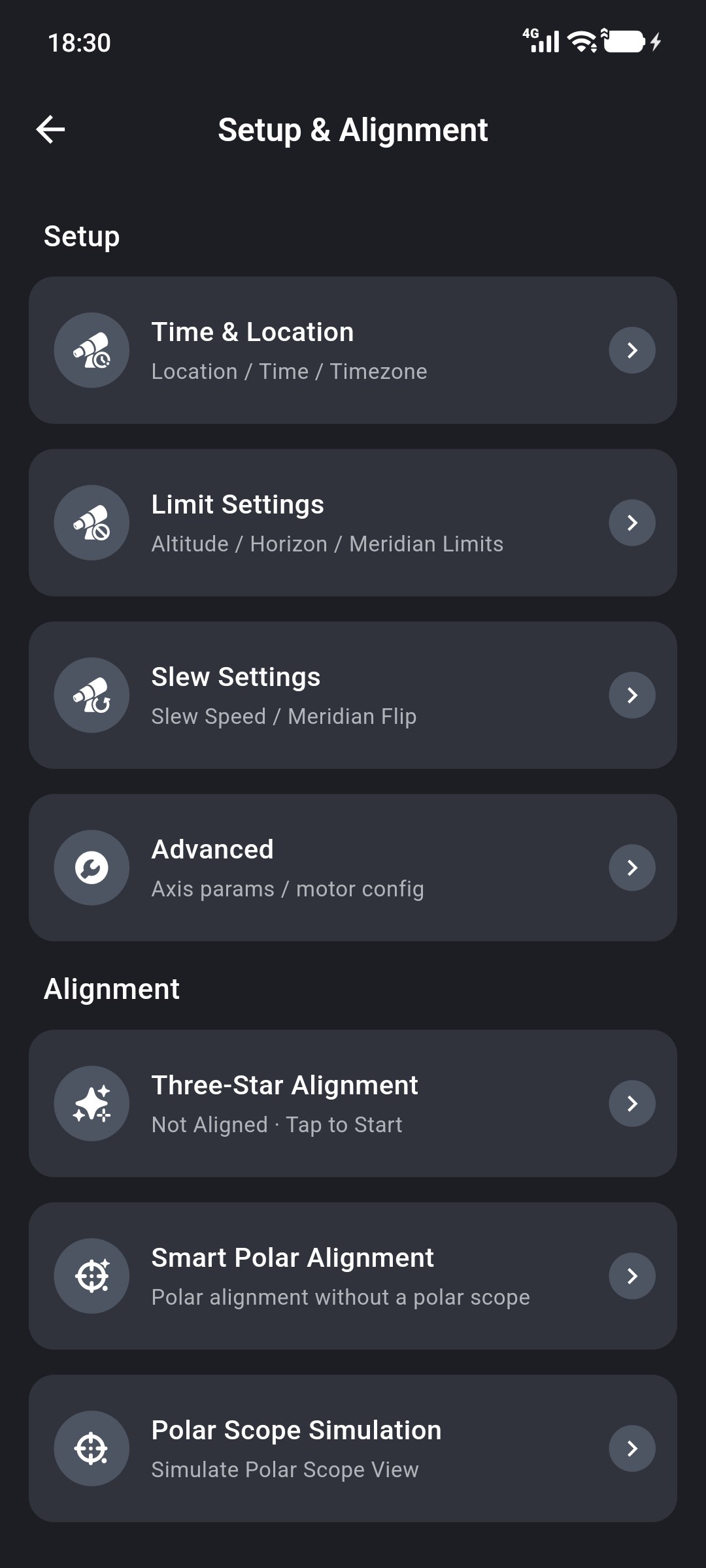
Three-Star Alignment Will Not Start
The mount must be at home, not tracking, and unparked. Return it safely to home and disable tracking. See Three-Star Alignment.
Smart Polar Alignment Requires Three-Star Alignment
Smart Polar Alignment depends on the Three-Star Alignment result. Complete that alignment first.
Mount State and Errors
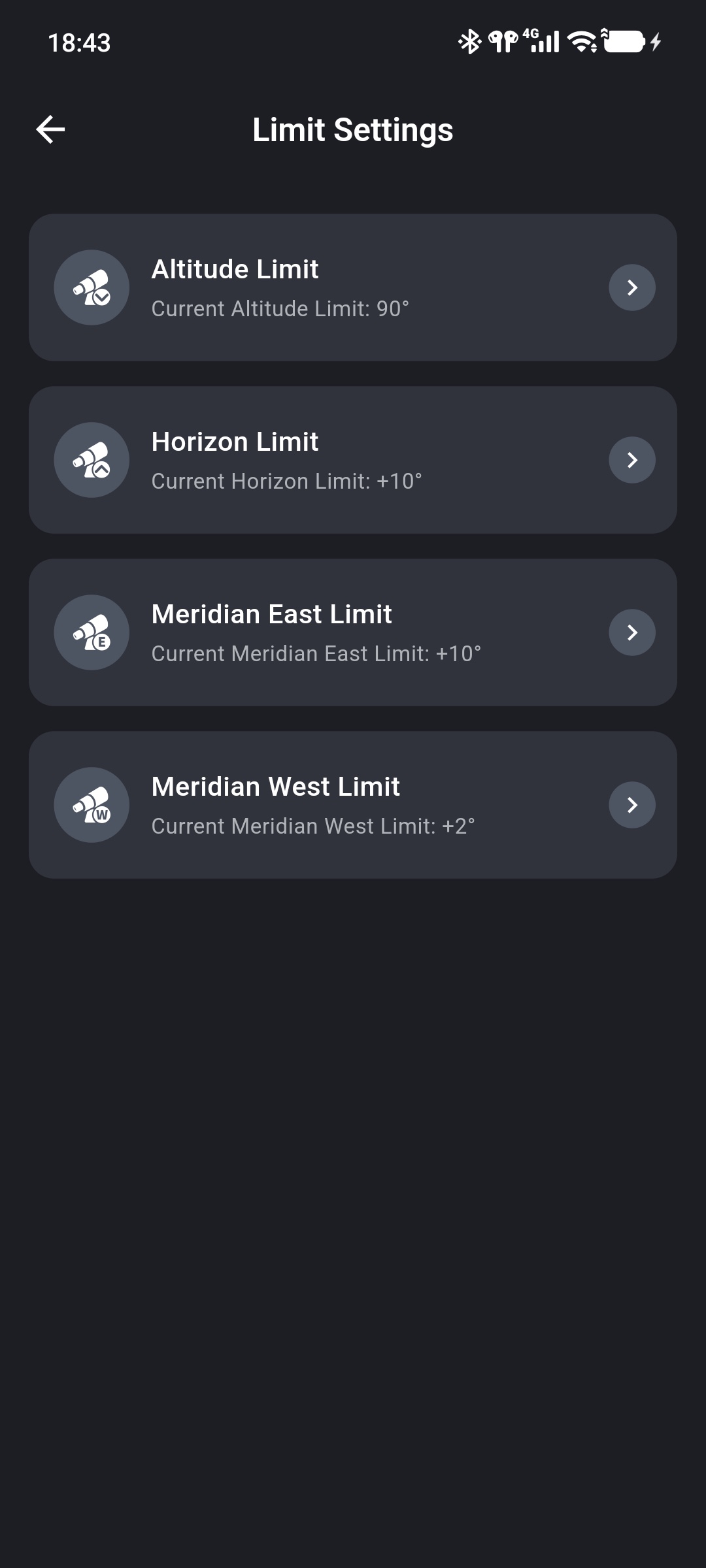
A Limit-Triggered Message Appears
A configured limit stopped the corresponding movement. First confirm mechanical safety. If reverse movement is safe, use a low manual slew rate to move away from the limit, then determine why it was triggered before changing the setting.
Meridian Flip Is Abnormal
Review Auto Meridian Flip and the east/west meridian limits.
Other Problems
3D Telescope Preview Will Not Open
For a fork or alt-az mount, the App reports that the type is unsupported. Otherwise return to Device and check the connection. If Loading… remains displayed, leave and reopen the page. See 3D Telescope Preview.
The Interface Differs from This Guide
Features and layouts may vary between versions. Refer to the current App interface.