
ONSTEP uses the current time, timezone, longitude, and latitude to calculate celestial coordinates. After first setup, moving to another observing site, or crossing timezones, use Auto Setup to write this information from the phone or use the separate manual controls.
After setup, mount time should match the phone, and Mount Location should match or be close to System Location.
Open Setup & Alignment and select Time & Location.
Before you begin
Connect the mount first. Before using Auto Setup, also grant TRITON GOTO location access and enable the phone's system location service.
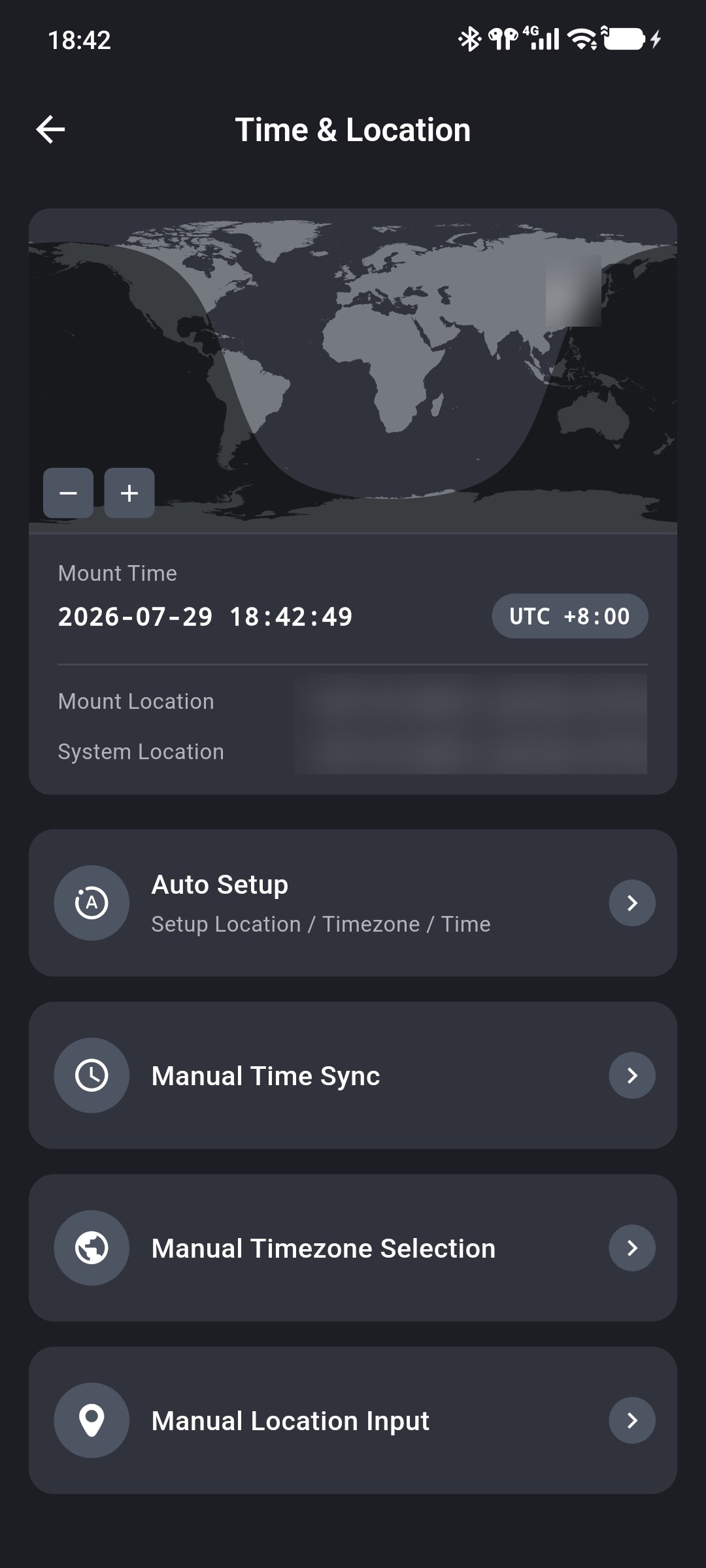
Review the Current Time and Location
The top of the page shows the time, timezone, and location currently used by ONSTEP. Mount Location and the phone's System Location are shown separately.
The map marker represents the geographic location saved in ONSTEP, while the light and dark regions show the current day/night distribution. Use − and + in the lower-left corner of the map to change its scale.
Before applying settings, check:
- Mount Time: Should match the phone's current time.
- Timezone: Should match the timezone of the observing site.
- Mount Location: Should match or be close to System Location.
Auto Setup
Auto Setup reads the phone's system timezone, current time, and location in sequence and writes them to ONSTEP.
Tap Auto Setup and wait for Auto Setup Completed. The mount time, timezone, and location at the top of the page refresh automatically.
System Location displays N/A
Return to Device to obtain the local position once, then check location permission under Profile → System Permissions. Without a usable phone location, Auto Setup may configure only timezone and time and cannot continue with the mount location.
Manual Time Sync
Manual Time Sync writes the phone's current time to ONSTEP. It uses the timezone currently configured in the mount, so first confirm the timezone shown at the top of the page.
Tap Manual Time Sync. After Time Synced Successfully appears, the mount time updates to the phone's current time.
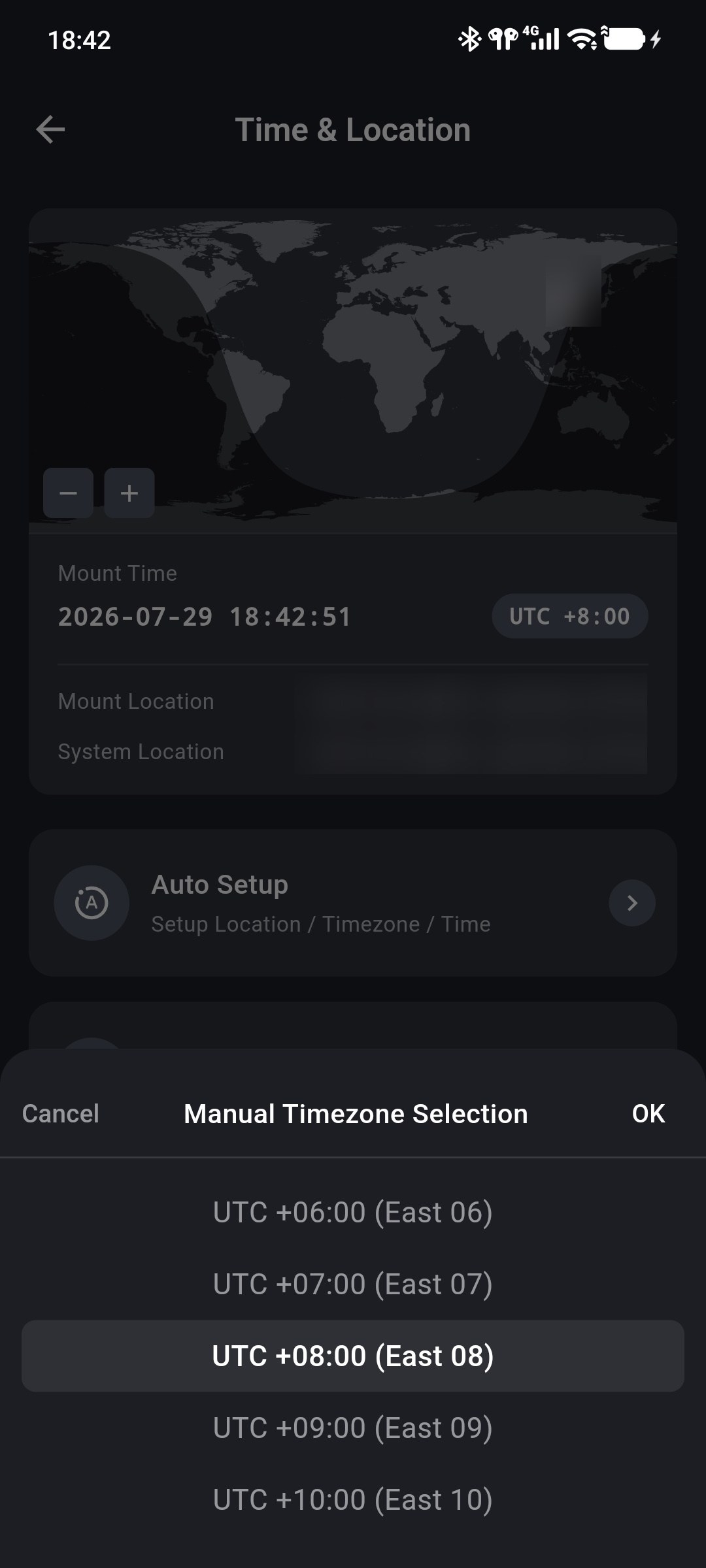
Manual Timezone Selection
Manual Timezone Selection sets the standard timezone used by ONSTEP. After selecting a timezone, the App also synchronizes mount time for that timezone.
Tap Manual Timezone Selection, select the timezone for the observing site, and tap OK. The available range is UTC -12:00 through UTC +14:00; mainland China normally uses UTC +08:00 (East 08).
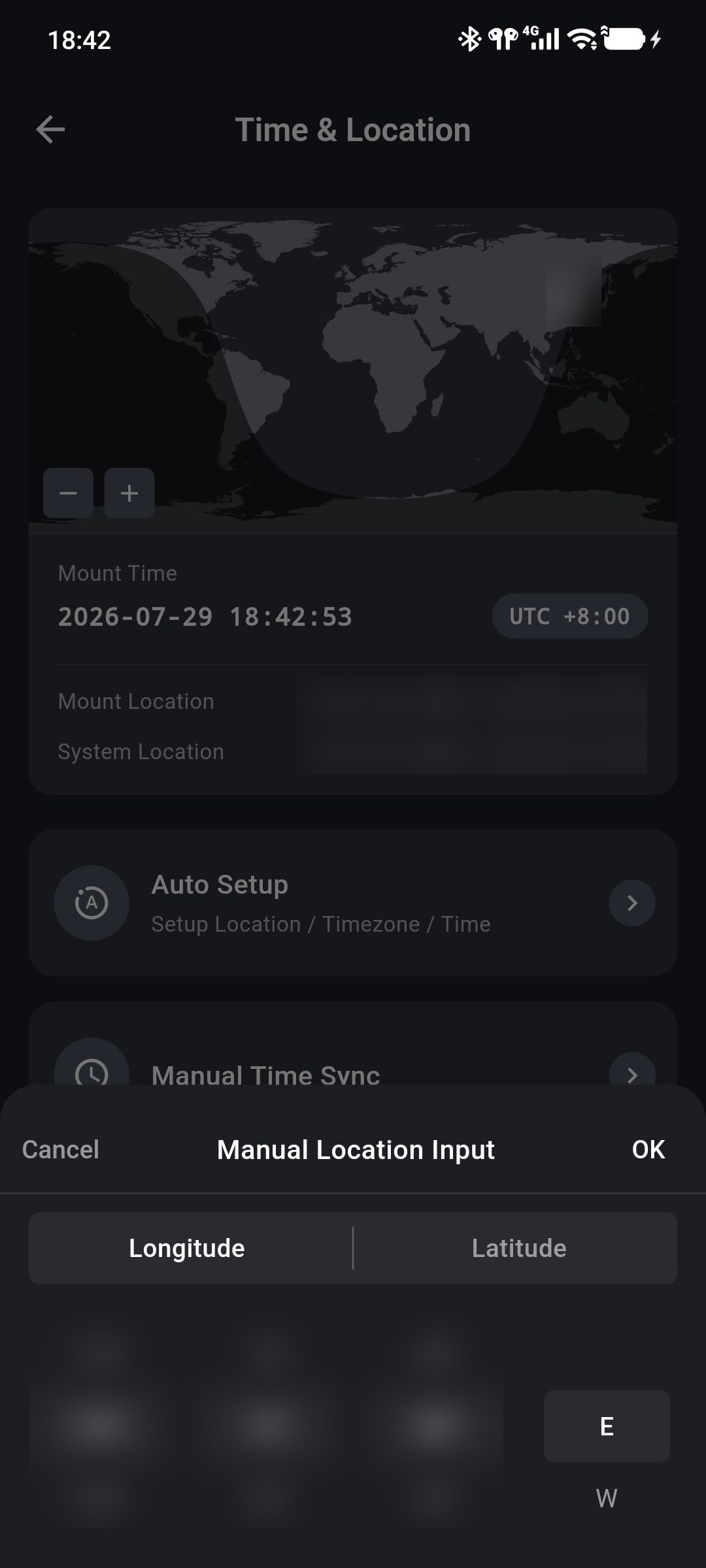
Manual Location Input
Manual Location Input sets the longitude and latitude used by ONSTEP. Use it when phone location is unavailable or when preparing another observing site in advance.
Tap Manual Location Input and configure longitude and latitude separately:
- Longitude: Enter degrees, minutes, and seconds, then select east
Eor westW. - Latitude: Enter degrees, minutes, and seconds, then select north
Nor southS.
Tap OK when finished. Longitude must be within 0°–180°, latitude within 0°–90°, and minutes and seconds within 0–59.
Verify the Result
After setup, review the mount time, timezone, and location at the top of the page. Mount Location should match or be close to System Location, and Mount Time should match the phone.
When mount time or location differs significantly from the phone, the corresponding Mount Info item shows a red exclamation mark. Return here to run Auto Setup again or change the relevant value separately.
Setup Failure
If Setup failed. Please try again. appears, check in order:
- Whether ONSTEP remains connected.
- Whether location permission is granted and the system location service is enabled.
- Whether System Location displays valid coordinates.
- Whether manually entered coordinates and directions are correct.
Then retry the corresponding operation.