
The 3D Telescope Preview uses a model to show mount orientation and provides coordinates, direction controls, tracking and slew rates, Home, and Park. When ONSTEP is connected, the model follows both mount-axis angles. When disconnected, the model remains available and its orientation can be adjusted in simulation.
Open Device and tap the 3D View icon at the lower-right of the moon-phase card.
Controlling a connected mount
When connected, direction, tracking, Home, and Park controls on this page send commands to ONSTEP. Confirm that the optical tube, counterweights, and cables have a safe movement path. Do not touch these controls when you only need to inspect the model.
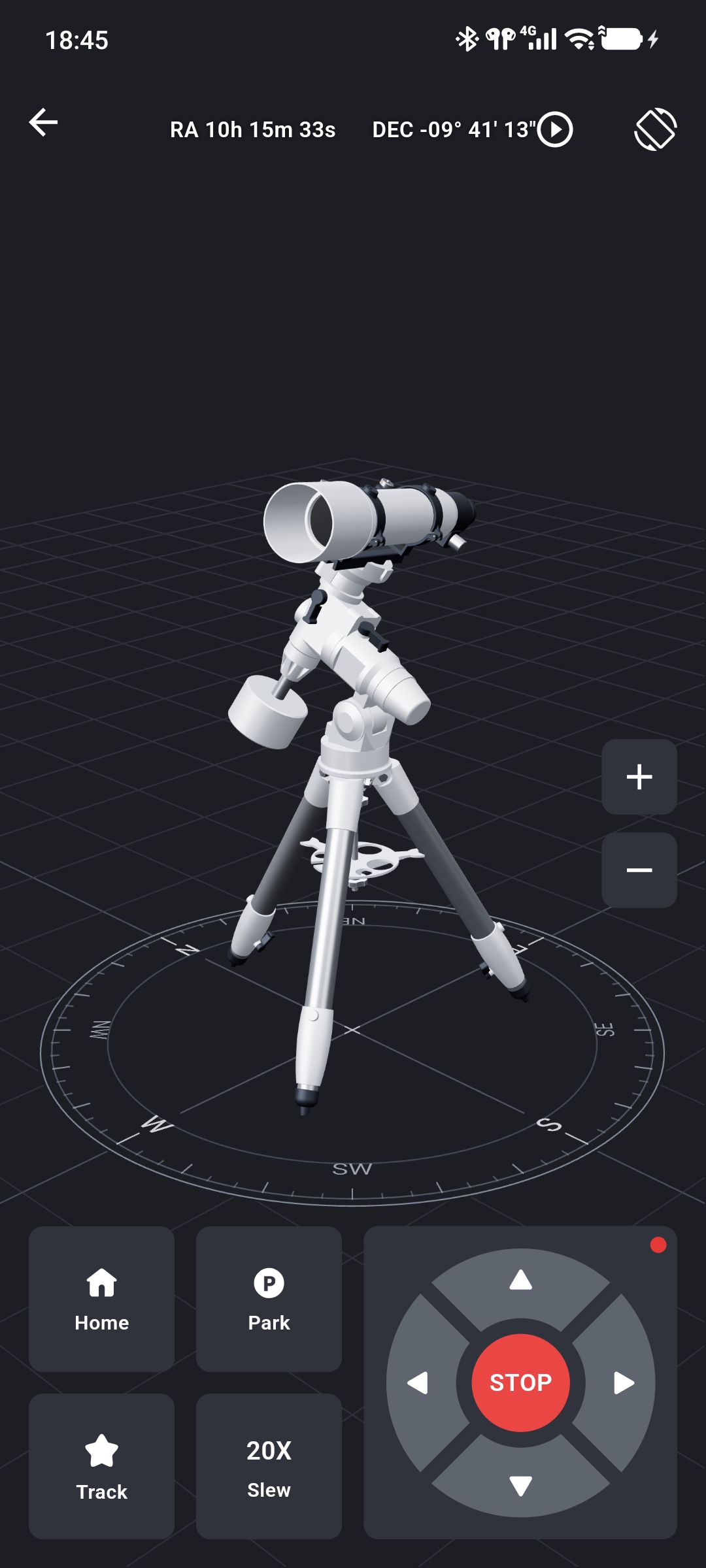
View Orientation and Coordinates
When connected, the page continuously reads both mount-axis angles and updates the model. Current RA and DEC coordinates appear at the top. The model shows changes in axis orientation while the mount moves.
The telescope and mount are generic models intended to represent axis orientation. They do not reproduce the physical dimensions of the actual equipment and cannot determine whether the optical tube, counterweights, or cables will collide. Mechanical safety still depends on direct observation and the physical mount configuration.
When disconnected:
- valid RA and DEC values are not displayed;
- Home, Park, and rate settings are unavailable;
- holding a direction changes only the simulated 3D model and does not control physical equipment.
Adjust the Viewing Angle
- Drag one finger over the model to view the mount from different directions.
- Tap + or − on the right to zoom in or out.
- Tap the screen-rotation icon in the upper-right to switch between portrait and landscape layouts.
Rotating or zooming changes only the viewpoint. It does not change the mount orientation or send movement commands.
Use the Built-in Controls
The controls at the bottom serve functions similar to the manual control panel.
Direction Control and Stop
When connected, hold east, west, north, or south to move continuously and release to stop that direction. Tap STOP in the center to stop current manual movement immediately.
East/west placement follows Profile → Preferences → Button Direction. Select a low slew rate for initial operation and continuously observe the equipment.
Tracking State
The dot in the upper-right corner of the direction-control card displays and changes tracking state:
- gray: disconnected;
- green: tracking on;
- red: tracking off.
When connected and unparked, tap the dot to enable or disable tracking.
Tracking and Slew Rates
Tap Track to choose sidereal, lunar, or solar tracking. The icon changes to a star, crescent, or sun for the current rate.
Tap Slew to set the direction-control rate, with ten levels from 0.25X to MAX. Tracking rate determines automatic celestial tracking; slew rate determines movement while a direction is held.
Home and Park
Tap Home or Park to open its operations. Available actions include Find Home, Reset Home, Park Mount, Unpark Mount, and Set Park Position. See Start Controlling: Home and Park Operations for effects and safety requirements.
Direction controls, tracking, and rate settings are unavailable while parked. Select Unpark Mount from Park before continuing control.
Preview or Controls Are Unavailable
- “Fork/Alt-az preview unsupported” appears: Real-time preview currently supports compatible equatorial mount types; fork and alt-az mounts are not supported.
- The model is visible but controls are disabled: Check whether the mount is disconnected or parked.
- Orientation or coordinates do not update: Return to Device, confirm that Mount Info refreshes normally, and reopen the preview.
- The page remains on “Loading…”: Leave and reopen it. If it still does not load, fully close and restart the App.
- The model direction differs from the equipment: Stop control and check mount type, axis configuration, and motor direction. Do not continue movement based solely on the 3D model.