
Android can connect to ONSTEP over Wi-Fi or Bluetooth; iOS currently connects over Wi-Fi. When the connection succeeds, the TRITON GOTO connection icon turns green and the status reads Connected.
For the first connection, follow this page in order to select the network or Bluetooth device, configure the connection parameters, and verify the status.
TIP
Make sure the ONSTEP device is powered on and has finished starting. These devices commonly require a 12 V power supply rated above 2 A, but the actual requirement depends on the controller and connected equipment. Follow the specifications provided by the device supplier. If the device has a status indicator, it should illuminate normally after startup.
When using the mount for the first time, we strongly recommend becoming familiar with its operation with no payload attached.
Connect over Wi-Fi
On iOS, Wi-Fi is the only supported connection method.
Join the ONSTEP Network
Open the phone's system settings and join the wireless network provided by the ONSTEP device. The default network name is commonly ONSTEP or ONSTEPX, and the default password is commonly password.
TIP
When connecting over Wi-Fi, disabling mobile data on the phone is recommended for a more stable connection.
Enter the Connection Parameters
- Open TRITON GOTO. On the Device screen, select Wi-Fi in the Connection section.
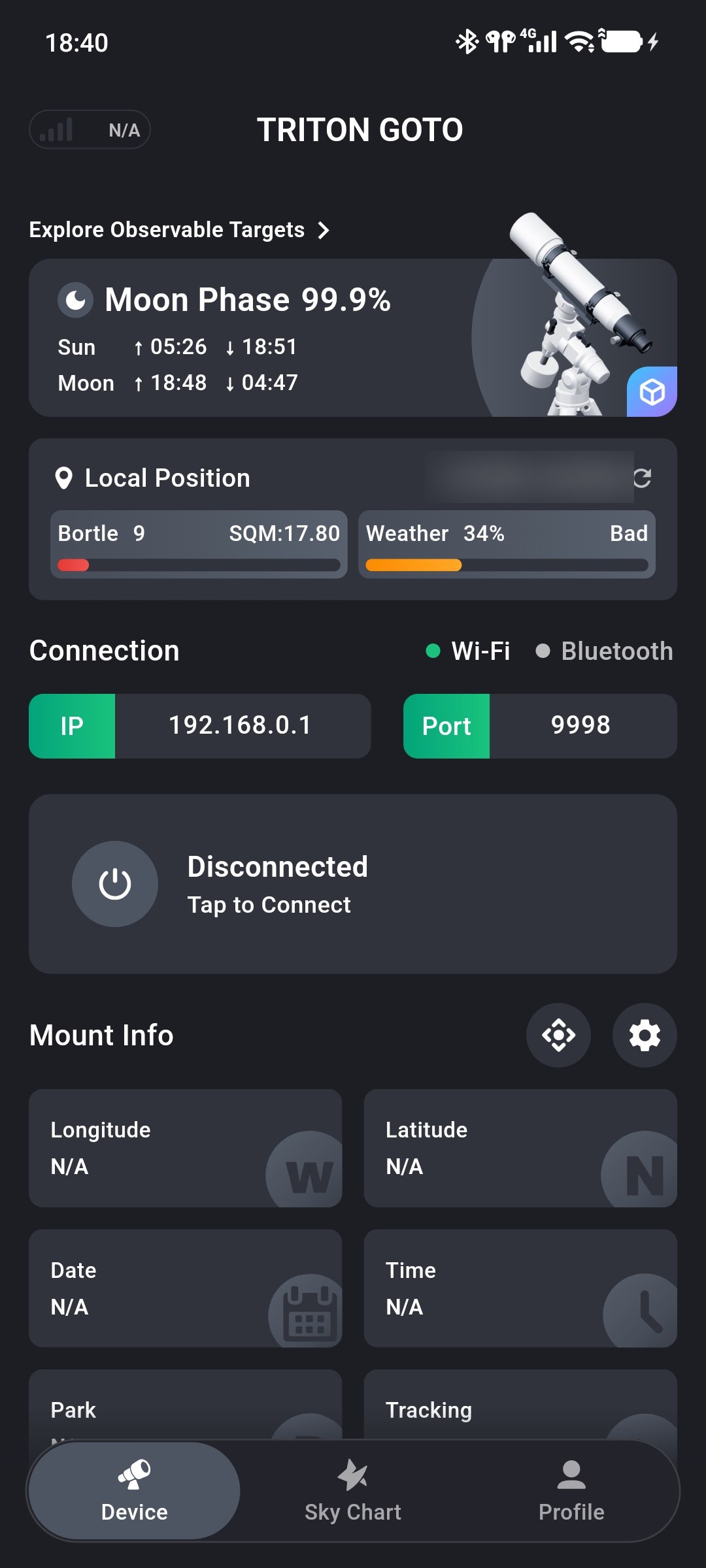
- Enter the connection parameters. The recommended App defaults are
192.168.0.1for the IP address and9998for the port.
TIP
Most ONSTEP devices do not require changes to these network parameters. Port 9998 is recommended instead of 9999.
Connect
- Tap the connection card. When the connection succeeds, the connection icon turns green and the status reads Connected.
Connect over Bluetooth
Bluetooth is available on Android only. Before connecting, enable Bluetooth in the phone's system settings.
Select Bluetooth
- Open TRITON GOTO. On the Device screen, select Bluetooth in the Connection section.
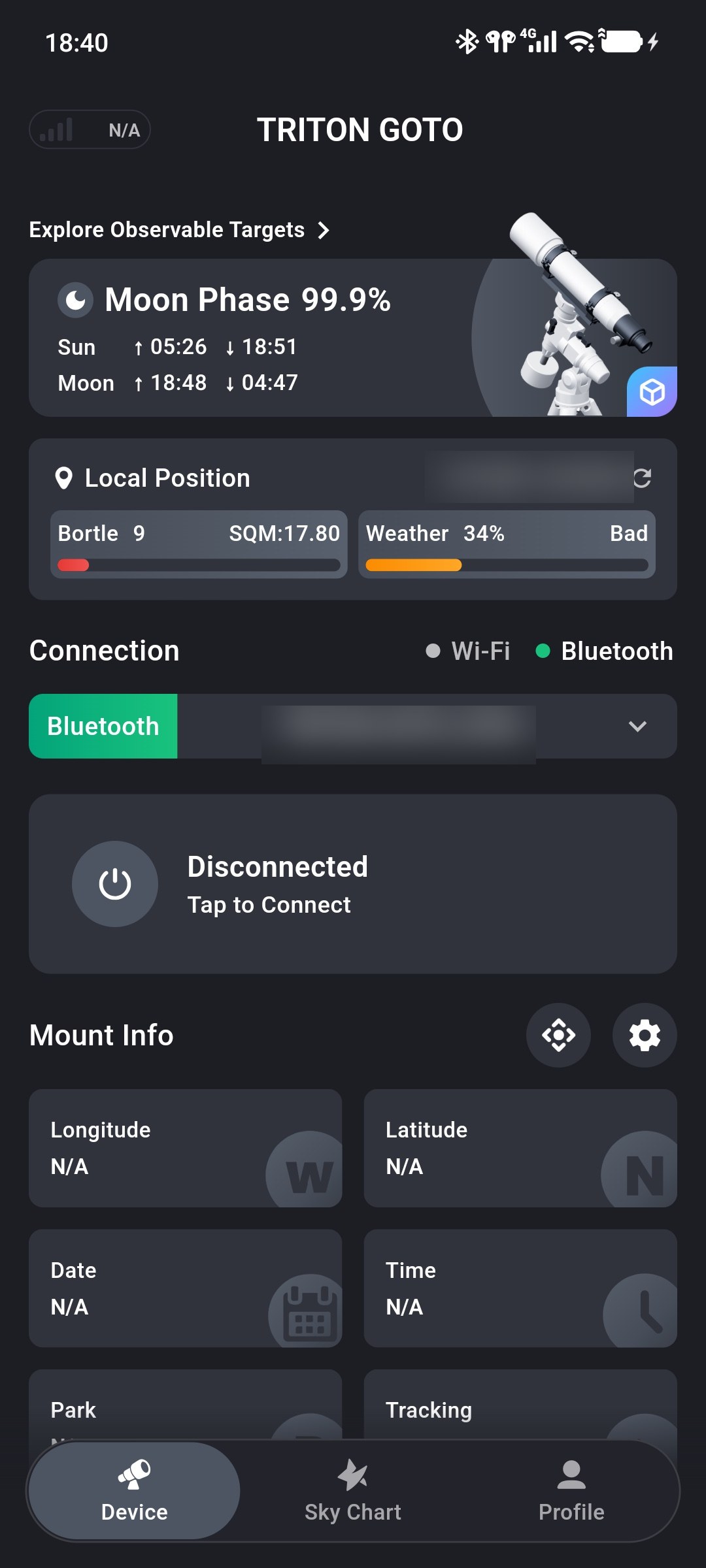
Select a Bluetooth Device
- Tap the Bluetooth field. When the device list opens, the App automatically scans for nearby Bluetooth devices.
TIP
On the first scan, the App requests Bluetooth scanning, connection, and location permissions. Bluetooth permissions are required to discover and connect to devices. If location permission is denied, scanning continues, but the results may be affected on some Android devices.
- Find and tap the device name used by the ONSTEP controller. The selected device appears at the top of the list.
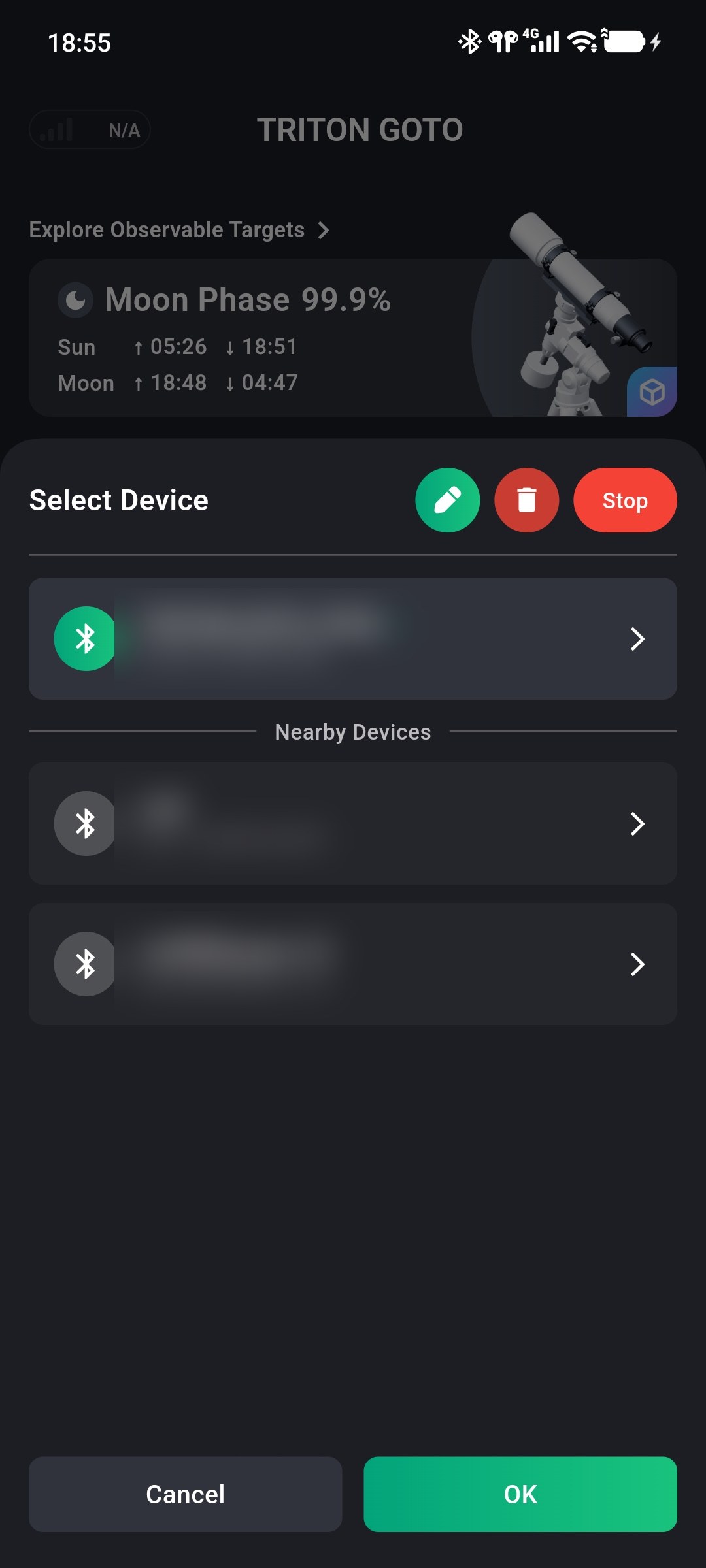
- Verify the device name, then tap OK to close the device list.
Connect
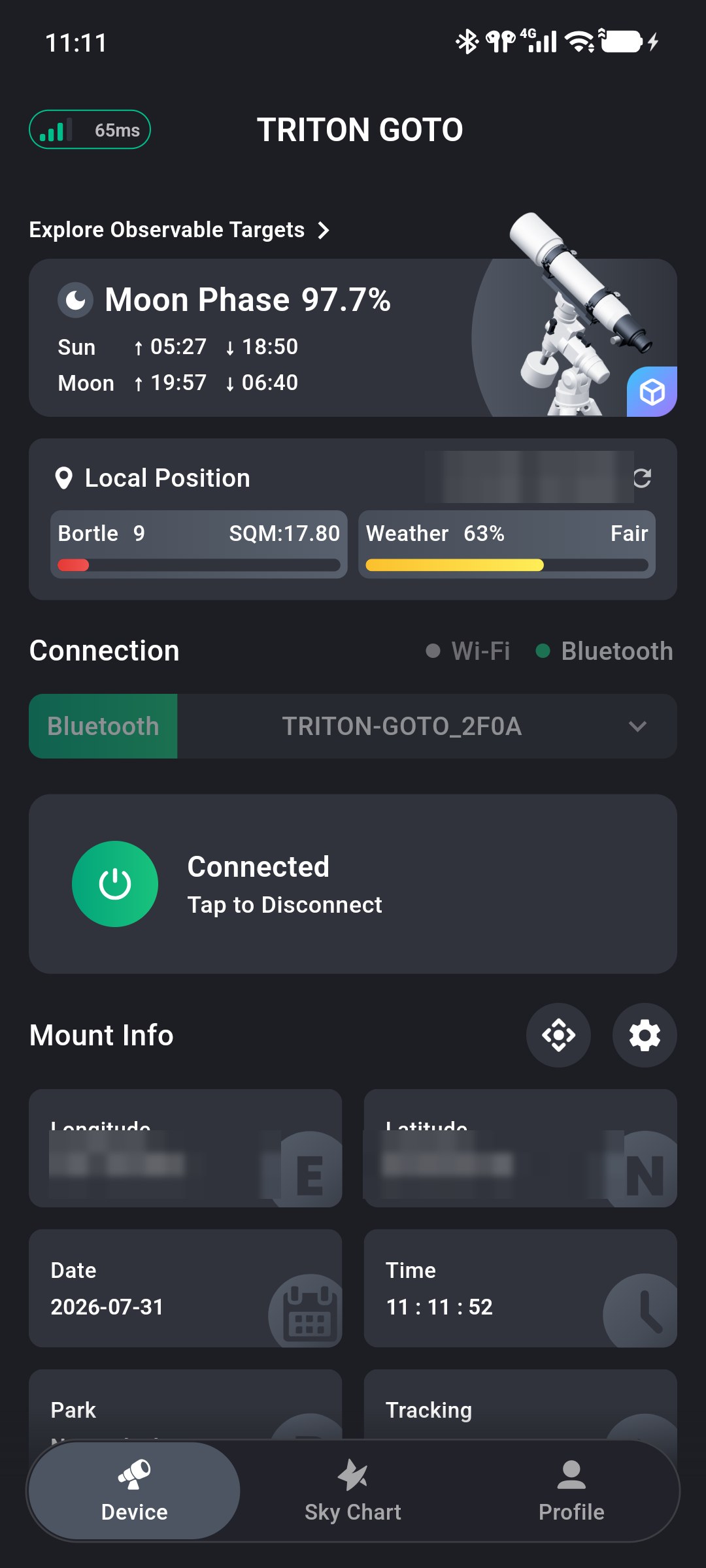
- Return to the Device screen and confirm that the selected device appears in the Bluetooth field. Tap the connection card. When the connection succeeds, the connection icon turns green and the status reads Connected.
TIP
Bluetooth devices that have connected successfully are saved in the App. The next time the device list is opened, they can be selected without scanning again. Use the edit control at the top of the list to assign display names when multiple devices need to be distinguished.
If the Connection Fails
- Confirm that the power supply meets the ONSTEP device requirements and that the device has finished starting.
- For Wi-Fi, confirm that the phone is connected to the ONSTEP network and verify the IP address and port. Temporarily disable mobile data if necessary.
- For Bluetooth, confirm that Bluetooth permissions have been granted and that the correct device appears in the Bluetooth field.
- If the status reads Connection Failed, tap the connection card to retry.