
Search for and select an object in the TRITON GOTO Sky Chart, check its altitude and coordinates, then confirm GOTO to slew the ONSTEP mount to the calculated position. Accurate centering also depends on mount time, location, home position, polar alignment, and Three-Star Alignment.
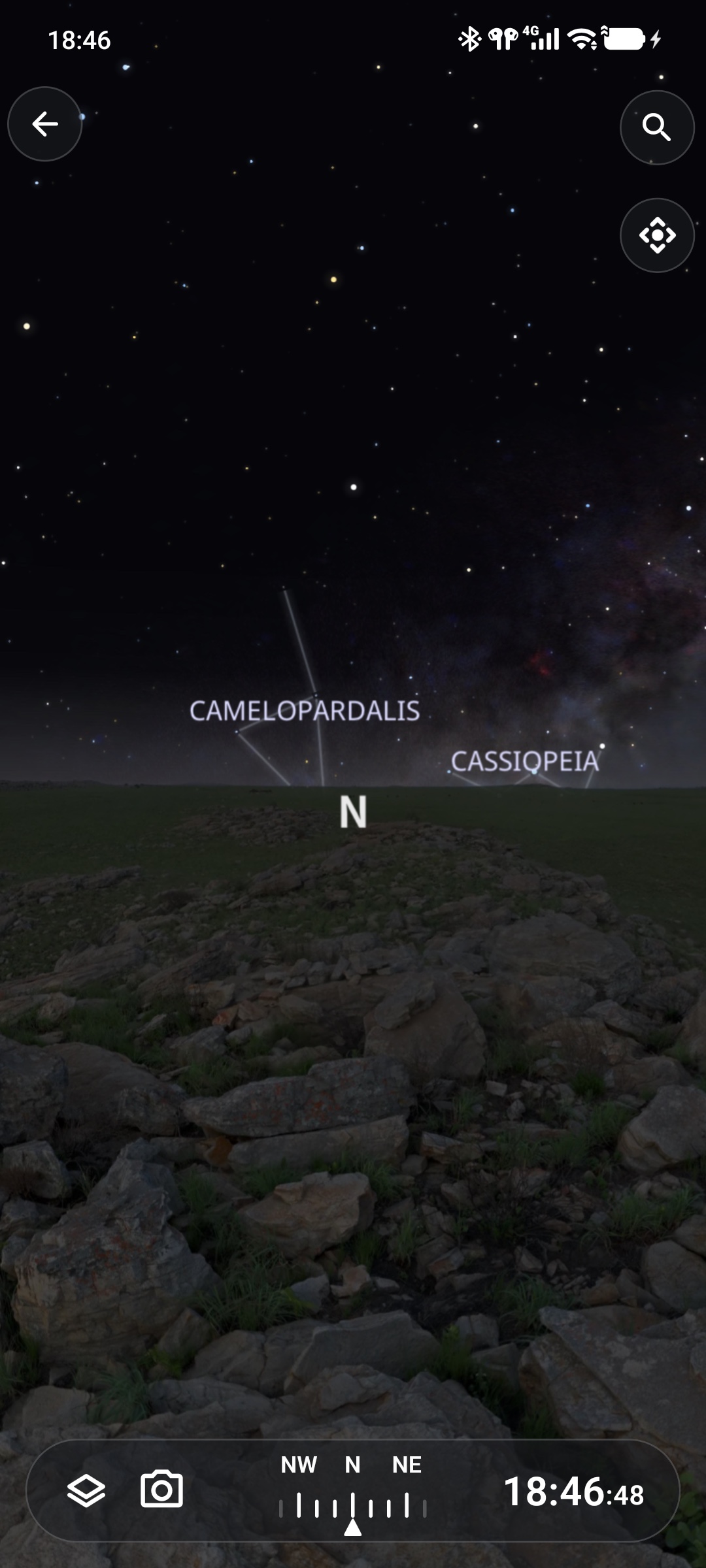
Select Sky Chart from the bottom navigation. Drag to change viewing direction and pinch to change the field of view. Constellations, landscape, coordinate grids, and light-pollution effects are configured under Sky Chart Settings.
Before You Begin
Before slewing to a target, confirm that:
- ONSTEP is connected as described in Quick Start;
- mount time, timezone, and location are accurate;
- the mount was at the correct home position at startup;
- appropriate altitude, horizon, and meridian limits are configured;
- the optical tube, counterweights, and cables have adequate clearance throughout the movement path.
Three-Star Alignment can improve GOTO accuracy, but does not replace correct home, time, and location settings.
GOTO moves the mount
After GOTO confirmation, the mount begins slewing immediately. Check surrounding clearance first and continuously observe the optical tube, counterweights, and cables until movement finishes.
Search for a Target
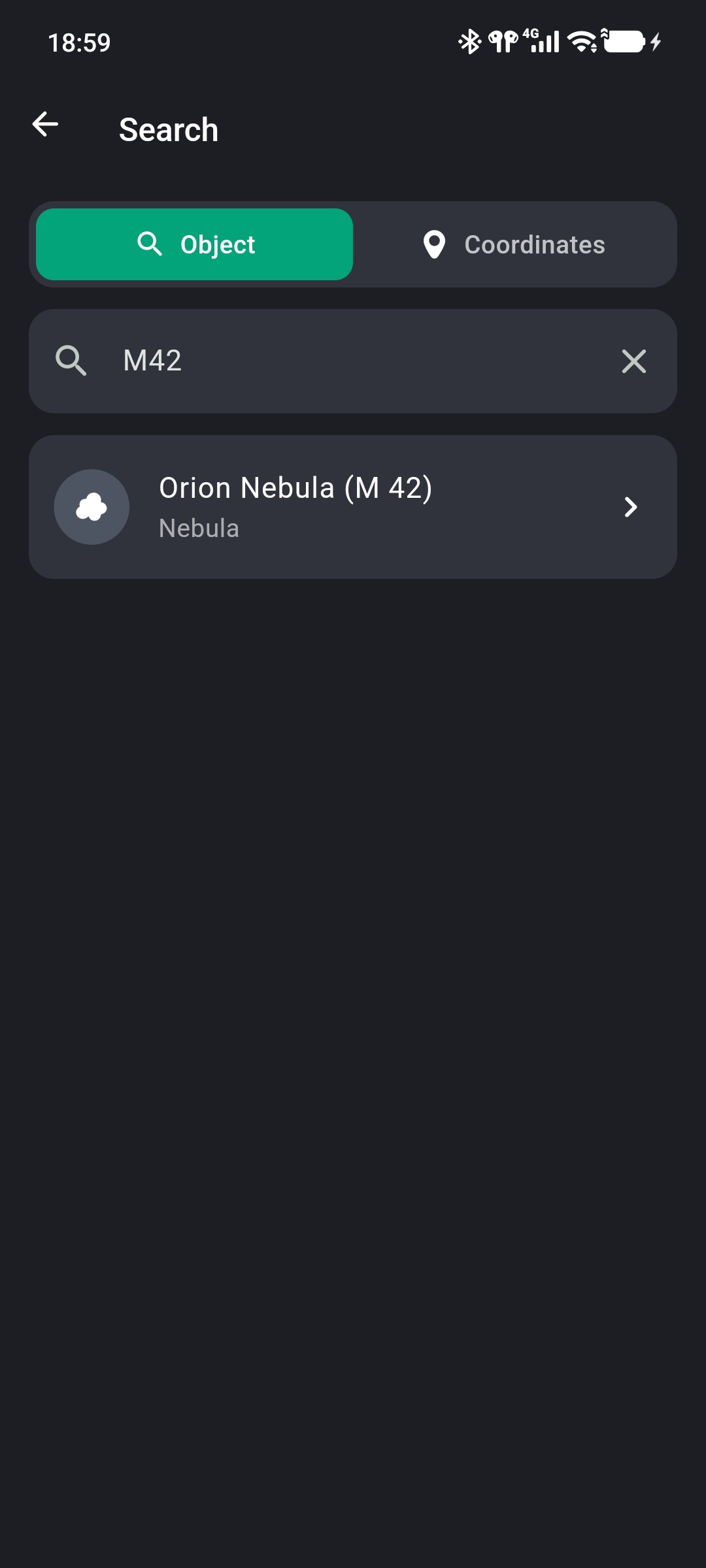
Tap the magnifying-glass icon in the upper-right to open Search. Two methods are available:
- Object: Enter an object name or catalog number, such as
M42. - Coordinates: Find a position by RA and DEC, or by AZ and ALT.
After entering a name, results show object name and type. Select a result to return to the Sky Chart with the target centered.
You can also select a star, planet, or deep-sky object directly in the chart. To choose according to current observing conditions, open an object from Tonight and Catalogs, then use the Sky Chart for GOTO.
Check the Current Target
After selection, the Current Target panel displays:
- object name, type, and magnitude;
- RA and DEC;
- ALT and AZ;
- Sync and GOTO actions.
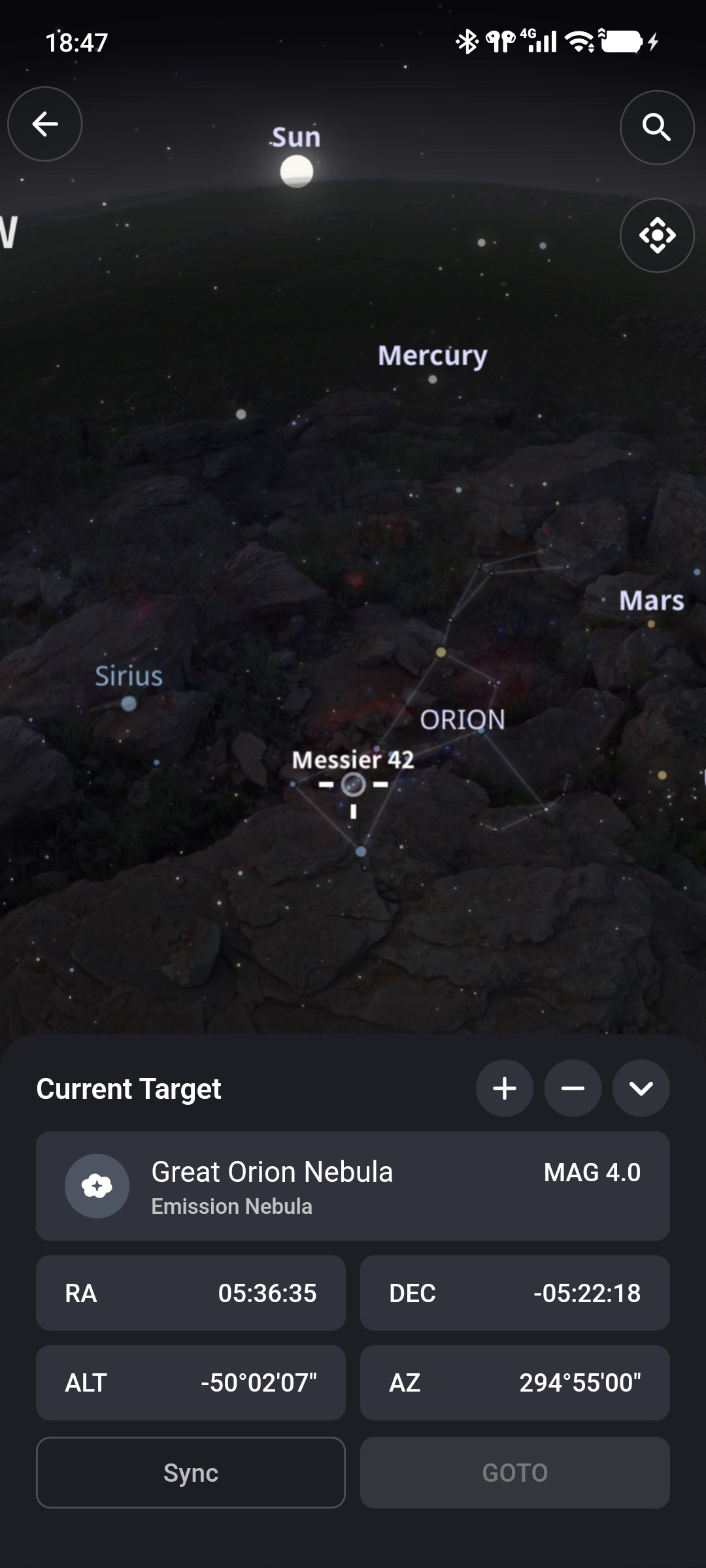
Check ALT before moving. A negative altitude means the object is below the horizon and GOTO is disabled. Objects above the horizon may still be blocked by buildings, terrain, or trees; consider the actual site.
Tap the expand icon in the panel's upper-right to view the visibility curve and how target altitude changes over time.
Perform GOTO
After checking the target and mount:
- Tap GOTO.
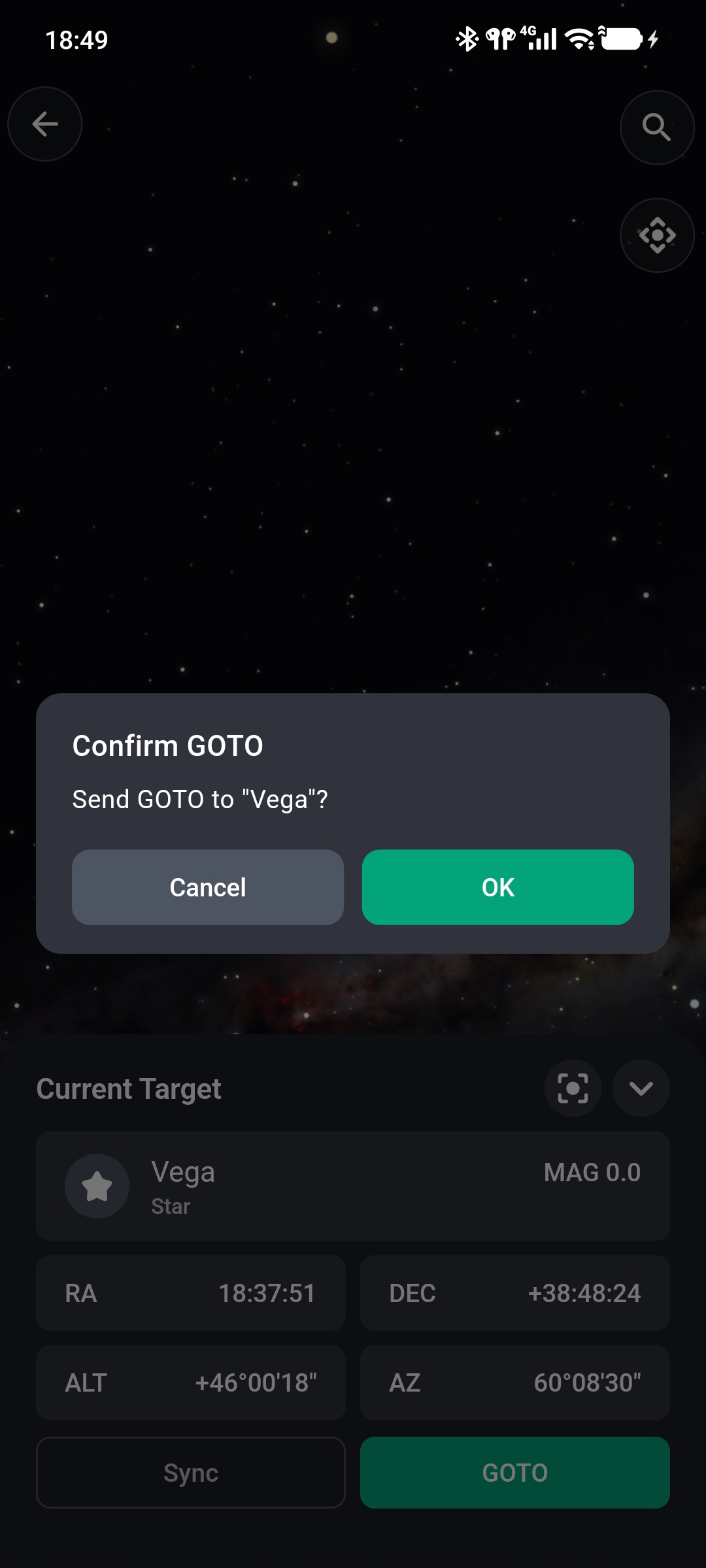
- Verify the target name in Confirm GOTO.
- After confirming a safe path, tap OK.
- Wait for the mount to finish slewing.
During movement, the panel action changes to Stop. If the optical tube, counterweights, or cables may collide, tap Stop immediately. After ensuring safety, inspect limits and target position.
GOTO completion means ONSTEP reached the calculated coordinates. Whether the target is centered in the eyepiece or camera also depends on home position, polar alignment, and Three-Star Alignment accuracy.
Non-current Time Restriction
The Sky Chart can display another date and time for planning. When chart time differs from phone time, Not Current Time appears and both GOTO and Sync are disabled.
Restore the current time before GOTO to avoid sending coordinates that do not match the real sky.
Solar Targets
Selecting the Sun and tapping GOTO displays Risk Warning.
Solar observing
Viewing the Sun directly through a telescope causes permanent injury and equipment damage. Observe only after a professional solar filter is installed correctly at the front of the telescope and every optical path is reliably protected.
GOTO Troubleshooting
GOTO Is Unavailable
Check in order:
- Whether ONSTEP is connected.
- Whether the Sky Chart is at current time.
- Whether target altitude is at least
0°. - Whether the target has valid RA and DEC coordinates.
ONSTEP Rejects GOTO
Check whether the mount is parked, a limit has triggered, or the target is outside the ONSTEP operating range. Do not loosen safety limits solely to run GOTO.
Large Pointing Error After GOTO
Check in this order:
- mount time, timezone, and location;
- startup home position;
- polar alignment;
- Three-Star Alignment.
If the error direction and size remain consistent, recheck home position, repeat Three-Star Alignment, and test again.