

Advanced Settings is intended primarily for ONSTEP users who build their own equatorial or alt-azimuth mounts. Except when changing the mount type, users of preassembled mounts generally do not need to and should not change these parameters.
The page shows the firmware version, mount type, and motor status. When the mount supports advanced configuration, it also provides controls for the connection mode, mount type, and drivetrain and driver parameters for both axes.
TIP
Editing advanced configuration may affect normal mount operation. Proceed with caution.
Open Advanced Settings
Tap Advanced on the Setup & Alignment screen.
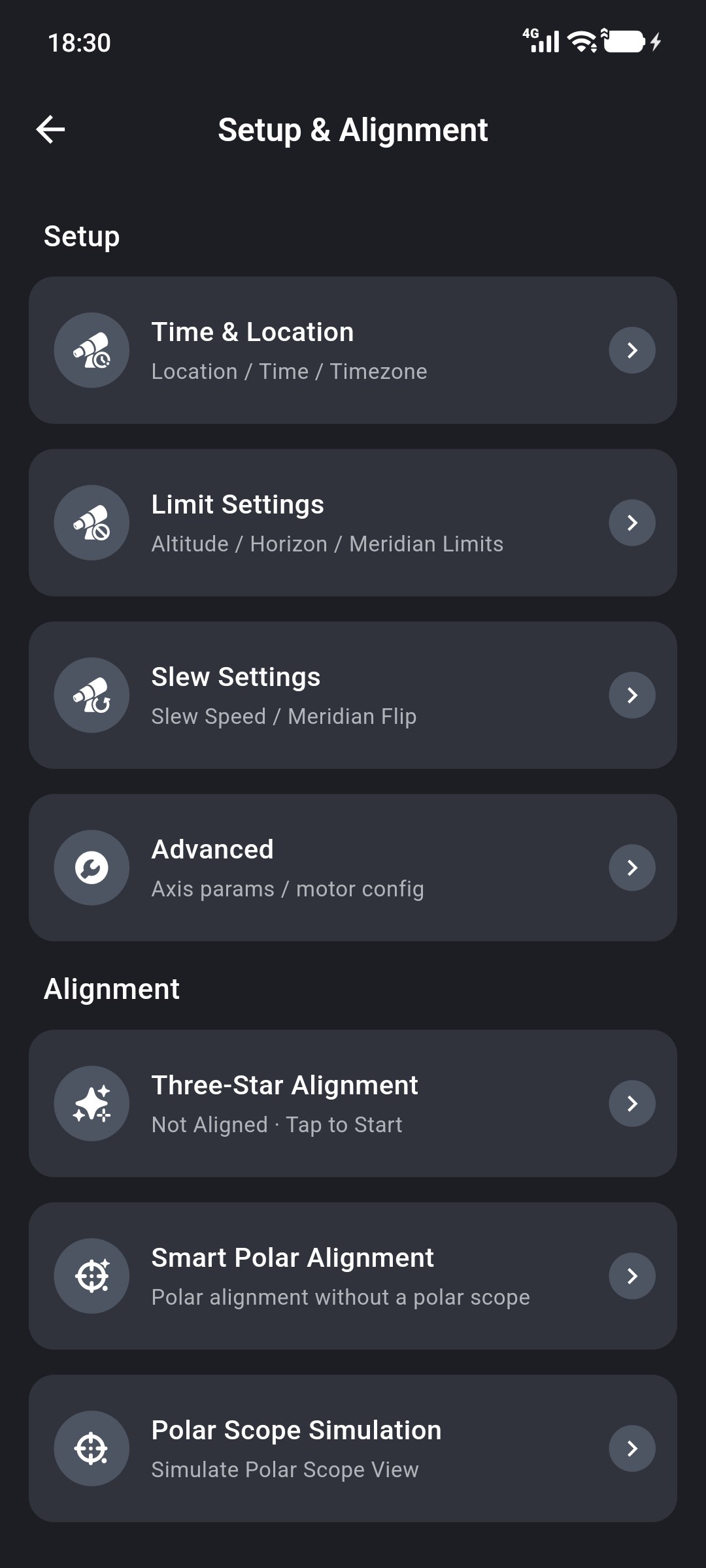
Before opening the page, the App checks the ONSTEP connection and firmware version. The page cannot be opened when the mount is disconnected, the firmware version cannot be identified, or the installed version is not supported.
Review the Current Configuration
The summary at the top contains information read from the mount:
- Firmware Version: the installed ONSTEP firmware version;
- Mount Type: the current mount type, including German Equatorial Mount, Fork Mount, or ALT-AZ Mount;
- Motor Status: the current operating or fault state for each axis when the driver supports status reporting.
If the motor status reports an open or shorted winding, an overtemperature condition, or a communication fault, stop using the mount and editing its configuration, then inspect the driver, wiring, power supply, and cooling.
Edit the Mount Type and Axis Parameters
Turn on Advanced Configuration, then tap Edit to edit the related settings.
Only parameters supported by the current firmware and driver appear under each axis:
- Pulses per Degree: the number of pulses required to rotate the mount's output axis by
1°, determined by the motor step angle, driver microstep setting, and mechanical gear ratios. This value can be calculated with the Pulse Calculator; - Tracking Microstep: the driver microstep setting used while the mount is tracking;
TIP
For a TMC2208 driver in standalone mode, the maximum is generally 16.
For a TMC2209 driver in standalone mode, the maximum is generally 64.
For a driver that supports UART/SPI communication, the maximum is generally 256.
In most cases, 64 is recommended.
- GOTO Microstep: the driver microstep setting used during GOTO. It is usually lower than Tracking Microstep, and reducing it helps increase the motor speed during GOTO;
TIP
For a stepper driver in standalone mode, a separate GOTO microstep setting is generally not recommended. GOTO Microstep should be the same as Tracking Microstep.
- Standstill Current mA: the motor current used while the axis is stationary;
- Tracking Current mA: the motor current used while the mount is tracking;
- GOTO Current mA: the motor current used during GOTO;
TIP
In most cases, GOTO Current > Tracking Current ≥ Standstill Current. The motor generally requires higher power only during GOTO, while reducing current during tracking and standstill helps reduce motor heat.
For TMC2209, the recommended maximum GOTO current is 1200 mA. For TMC5160, the recommended maximum is 1800 mA.
- Tracking Decay Mode and GOTO Decay Mode: set the current-control mode used by a supported TMC driver during tracking and GOTO;
- Motor Direction: changes the motor direction without rewiring the motor. Use this setting when the mount moves in the wrong direction.
TIP
SpreadCycle prioritizes current regulation and dynamic response. It is better suited to heavy loads and higher-speed GOTO operation, but motor movement is more audible.
StealthChop prioritizes quiet, smooth operation at low speed and is suited to low-speed tracking.
Changed fields are shown in orange. To undo one change, tap the restore icon next to that field. It returns to the value read when edit mode started.
Disabling Advanced Configuration restores the related settings to their defaults. Do not use the switch as a way to leave edit mode or discard the current changes.
Use the Pulse Calculator
Pulse Calculator provides a convenient way to calculate pulses per degree from the mount's mechanical drivetrain parameters:
- Enter edit mode, then tap Pulse Calculator.
- Enter the Primary Gear Ratio and Secondary Gear Ratio for each axis.
- Select the actual Driver Microstep and STEP Angle.
- Tap Apply.
The calculated values are placed in Pulses per Degree and Tracking Microstep for both axes.
Save and Verify the Configuration
After editing, tap Save. The App lists the previous and new value for each change. Review the list, then tap Confirm.
After the configuration is written successfully, follow the App guide to restart the mount and verify the result. If verification fails, the App returns to the edit page and retains the target values awaiting verification. Check the parameters and connection, then follow the prompt to resubmit.
Switch the Connection Mode
In the Android App, Connection Mode appears when the mount supports this function and Advanced Configuration is enabled. It switches the mount between Wi-Fi and Bluetooth.
After the new mode is confirmed, the App restarts the mount and disconnects the current connection. Wait for the status indicator to turn on again, then reconnect using the new method. This disconnect is expected; do not repeatedly retry the old connection method while the mount is restarting.
Why Some Fields Cannot Be Edited
The App determines which fields can be edited from the firmware, connection method, and motor driver.
- The Advanced Settings page supports only ONSTEP
4.xand ONSTEP X10.x; - axis editing requires ONSTEP
4.24sor ONSTEP X10.07jor later; - Mount Type can be changed only on supported ONSTEP X
10.xfirmware; - axis editing over Wi-Fi is restricted except on supported TRITON GOTO NEO devices. For full editing functionality, use Bluetooth in the Android App or use the Windows client.
If a parameter cannot be selected for editing, the current mount does not support editing that item.